Pick the YouTube channels to play for your kids in advance (Plainfeed for parents)
TL;DR
- Group channels into a feed and you get a tab that shows only new videos from those channels. No recommendations, no Shorts.
- To play one video, open it from the timeline. To play several in a row, tap ▶ Play. Hide closes the comments.
- It works well when a parent picks the channels ahead of time and puts the videos on.
Plainfeed is a website that shows new videos from the YouTube channels you pick, in upload order, with no recommendations or Shorts. Here are setups for specific situations, for when you're putting videos on for your kids at home.
First: group the channels into a feed
In short: make a feed and you get one tab that shows only the channels you picked.
- On the home screen, add channels with Add by URL. No sign-in needed, and once added they stay. To choose from your YouTube subscriptions, use Import from YouTube.
- Tap + Feed in the tab bar, name it, check the channels and tap Save. If you already have a feed, choose ⋯ → New feed at the end of the tab bar.
- Bookmark the page while that feed's tab is open, and opening the bookmark takes you straight to that feed.
You can make 3 feeds and put up to 50 channels in each. One channel can be in several feeds.
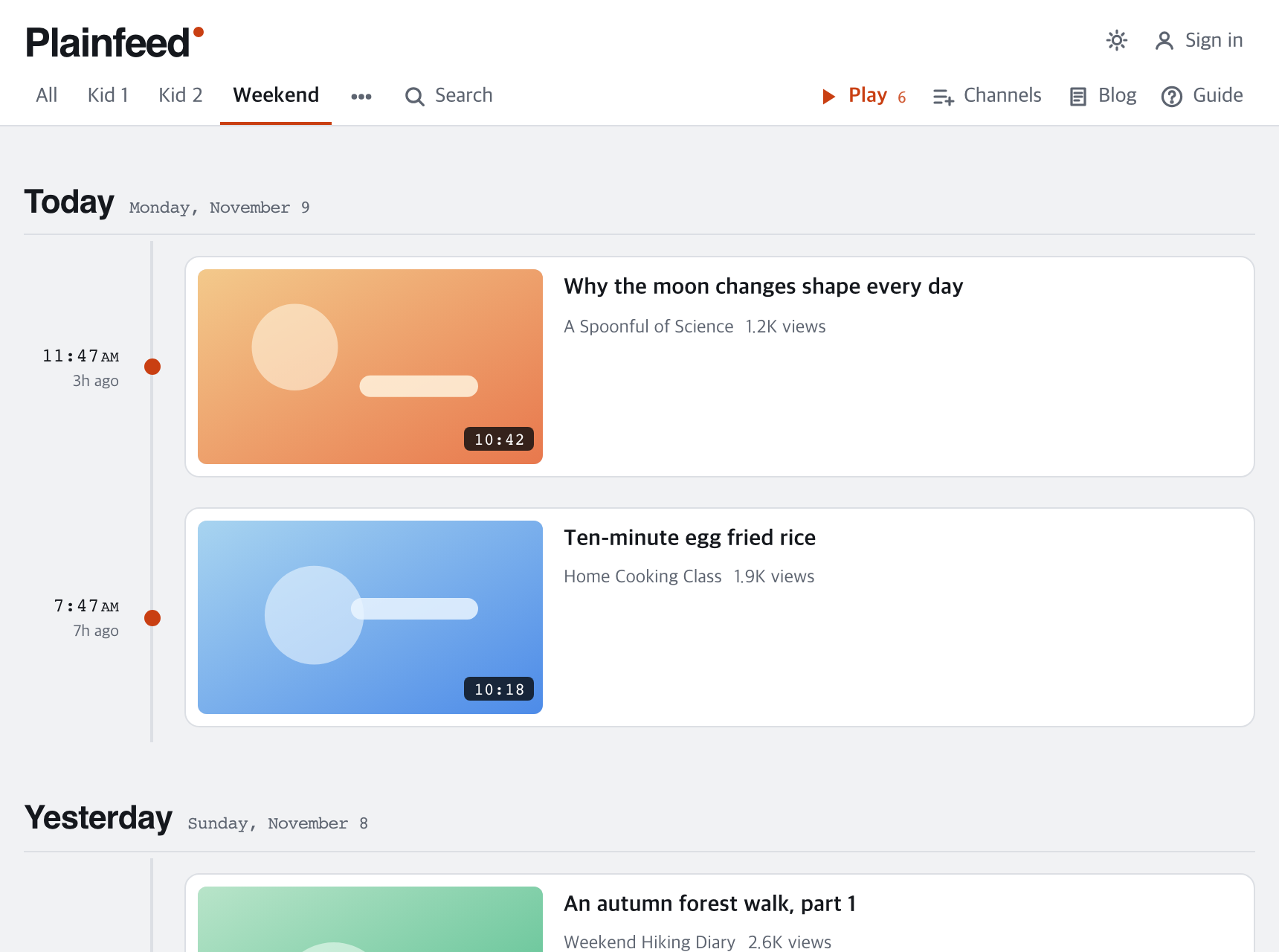
Separate channels by kid or by day
Setup: name your feeds something like "Kid 1" and "Kid 2", or "Weekdays" and "Weekend".
Open that tab when you put something on, and only new videos from that feed's channels appear. To see all your channels together, open the All tab.
Play one video and stop
Setup: nothing to change. Open a video from the timeline and only that one plays.
It won't move on to another video. If the comments bother you, tap Hide under the video to close them.
Play only the channels you picked, one after another
Setup: tap ▶ Play (▶ with a number on phones) on a feed tab.
It plays that feed's unwatched videos, newest first. To stop after each one, turn off Autoplay next under the player. Once off, it stays off next time.
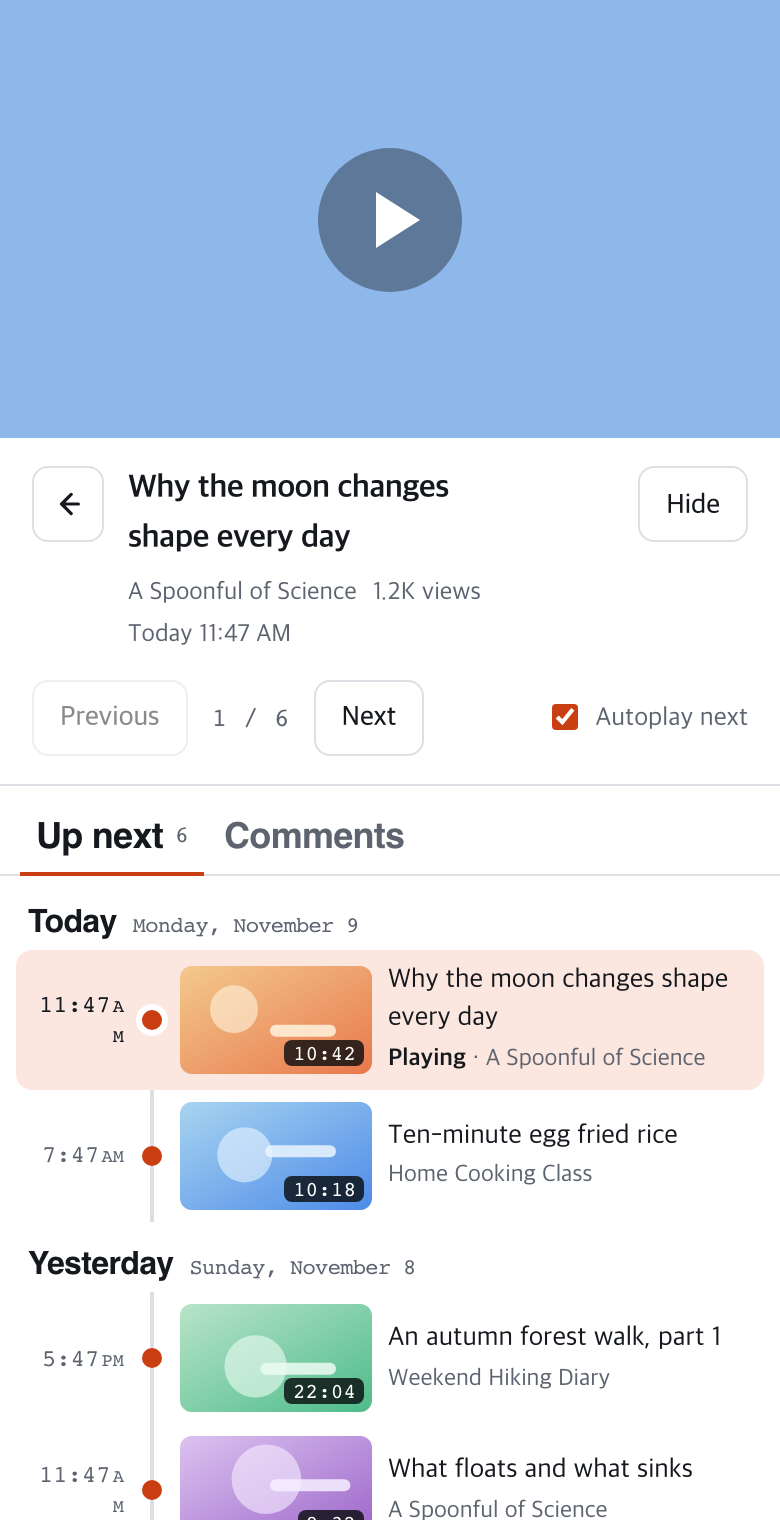
Narrow down what shows up
Setup: choose what to hide in Channels.
These are under Channels (on phones, Channels is the icon in the top right) → My channels.
- Hide watched videos: leaves only what you haven't seen.
- Hide short videos: hides videos under 5, 10, or 20 minutes, leaving longer ones.
- Hide live and upcoming streams: leaves only uploaded videos.
- Timeline range: choose the last 7, 14, or 30 days.
Once set, these apply to the All tab and every feed tab.
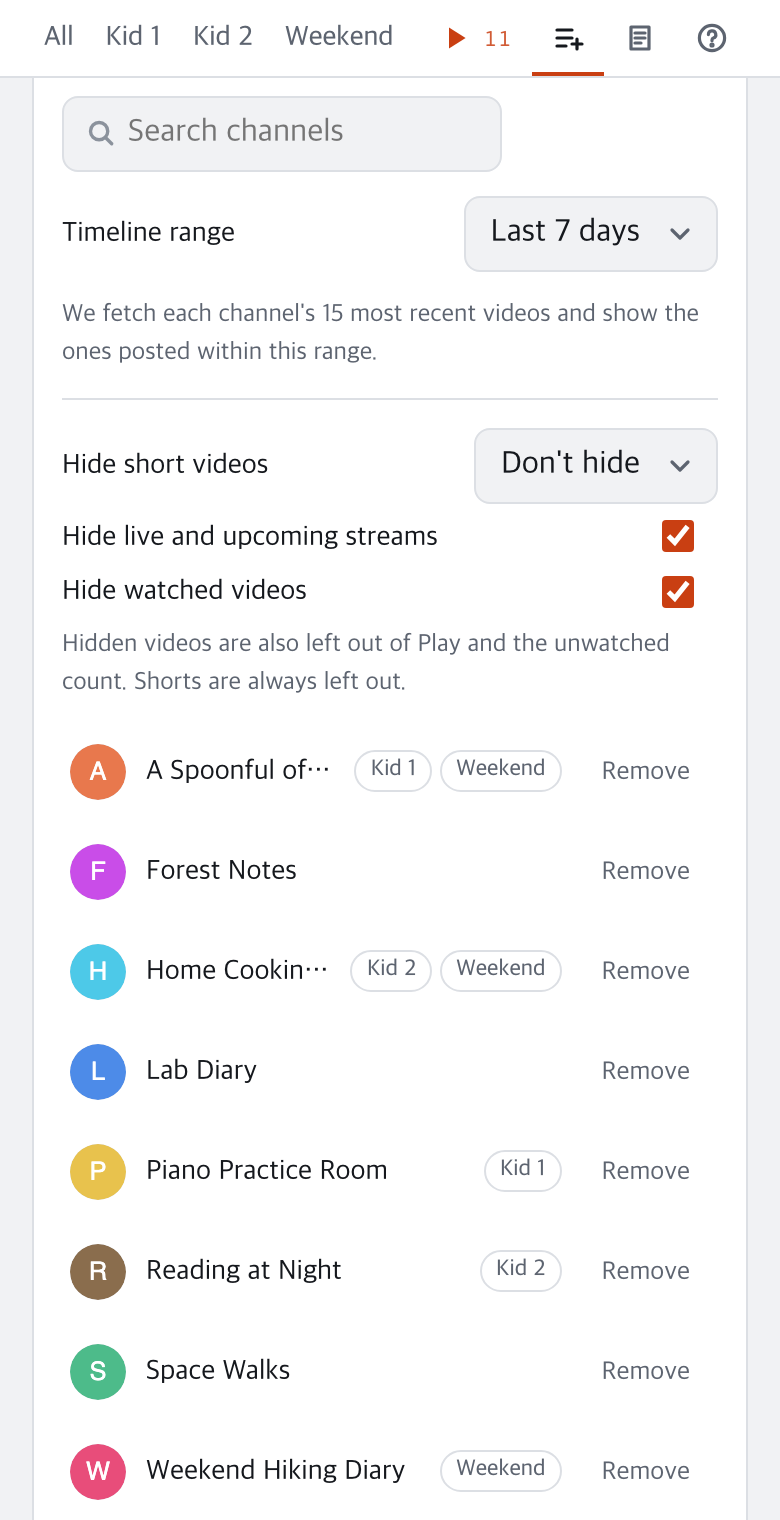
Play it bigger on a computer or tablet
Setup: open a video from a feed tab, then tap Hide under the video.
- Only that feed's channels appear, so YouTube's home recommendations and watch history stay off the screen.
- Hide closes the comments in the side panel and makes the video larger. It stays closed the next time you open a video in that browser.
- On a computer, Full screen under the video covers the browser tabs and the address bar too.
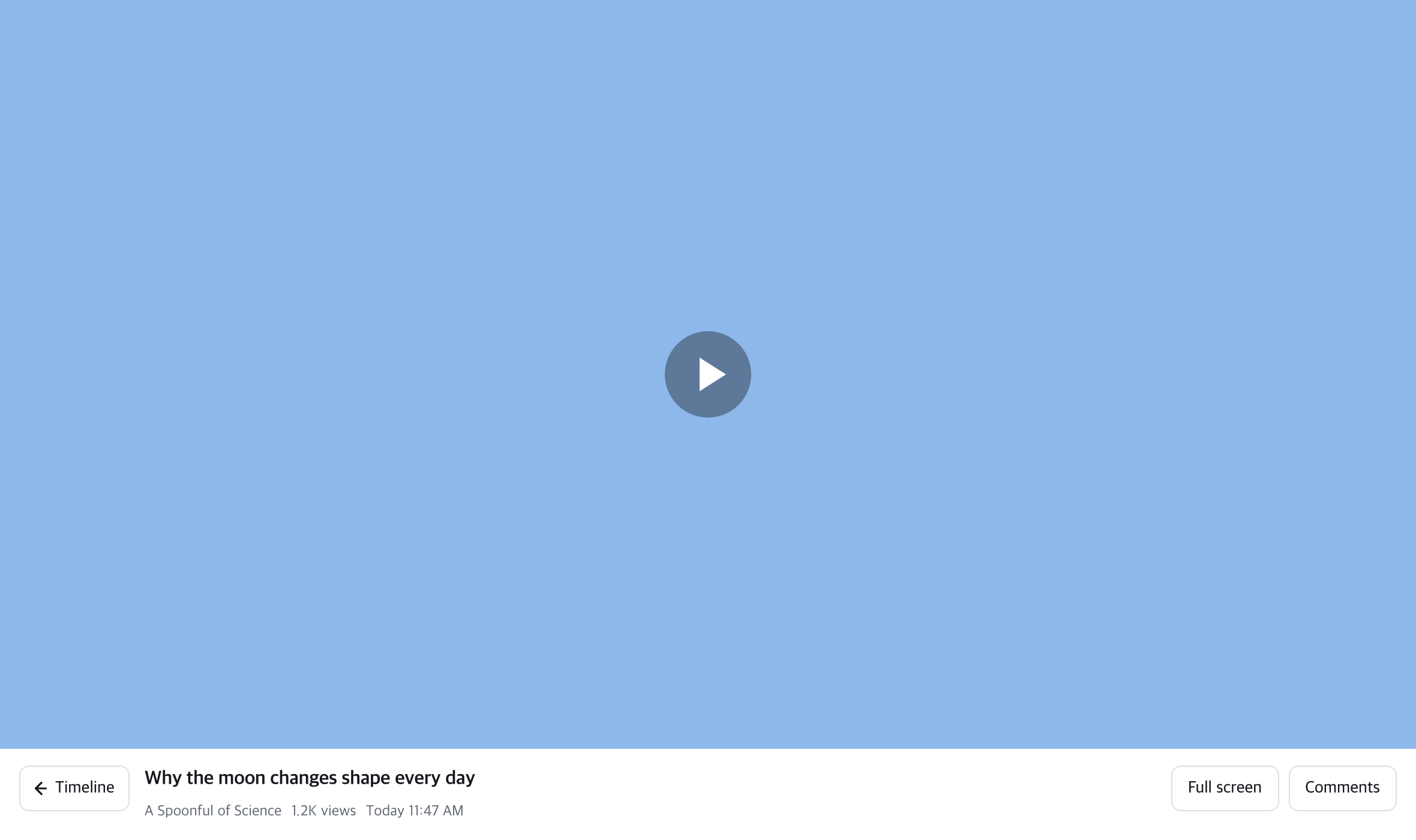
Use the same channel list on a family member's phone
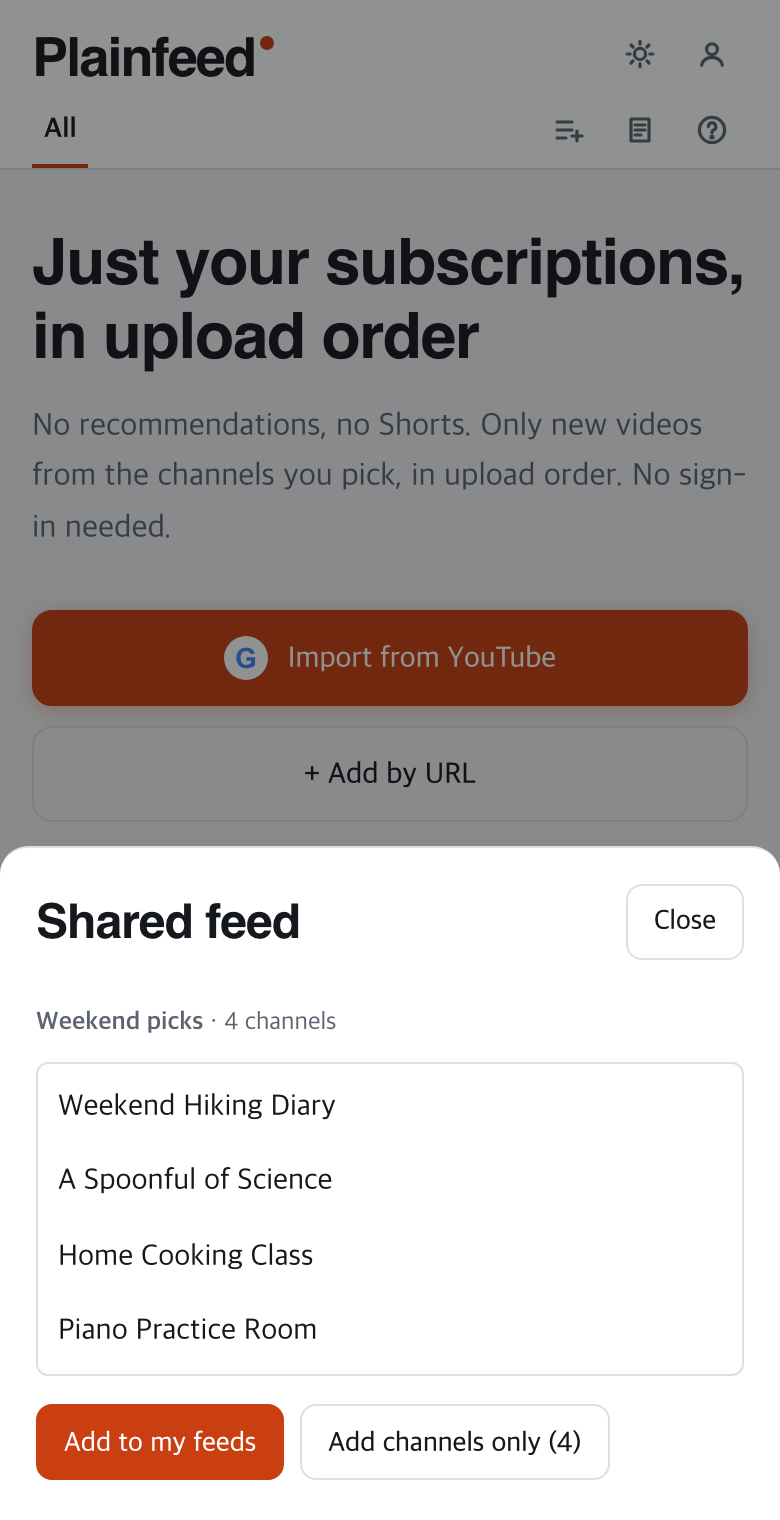
Setup: on the feed tab, choose ⋯ → Copy share link and send the link to your family.
Whoever opens it taps Add to my feeds and that's it. No sign-in needed. One link can hold up to 50 channels. After you change a feed, just send a new link. If every device signs in to the same Google account, channels and feeds stay in sync on their own.
Setups by what you want to do
| What you want | Setup |
|---|---|
| Sort channels ahead of time | + Feed in the tab bar |
| Open straight to a feed | Bookmark the feed tab |
| Play just one video | Open it from the timeline |
| Play several in a row | ▶ Play on a feed tab |
| Stop after each video | Turn off Autoplay next |
| Hide the comments | Hide under the video |
| Hide watched videos | Hide watched videos |
| Leave out live streams | Hide live and upcoming streams |
| Keep only longer videos | Hide short videos |
| Send the channel list to family | ⋯ → Copy share link |
Wrapping up
When the channels are sorted into tabs ahead of time, there's less to choose at the moment you press play. The buttons are explained in the guide, and sharing in the post on sending channel lists. If you have a question, write to [email protected].