Getting started with Plainfeed (import your YouTube subscriptions and start watching)
TL;DR
- Tap Import from YouTube on the home screen, pick the channels you want from your subscriptions, and your timeline is ready.
- We only ask Google for read-only access to your subscriptions. If you'd rather not use a Google account, you can paste channel URLs instead.
- Because of YouTube's policy, imported subscriptions need to be imported again every 30 days. After 25 days a button appears above the timeline.
Plainfeed is a website that shows new videos from the YouTube channels you pick, in the order they were posted, without recommendations or Shorts. There's nothing to sign up for or install; it works in your browser. This post covers only what to do the first time you open it, in order.
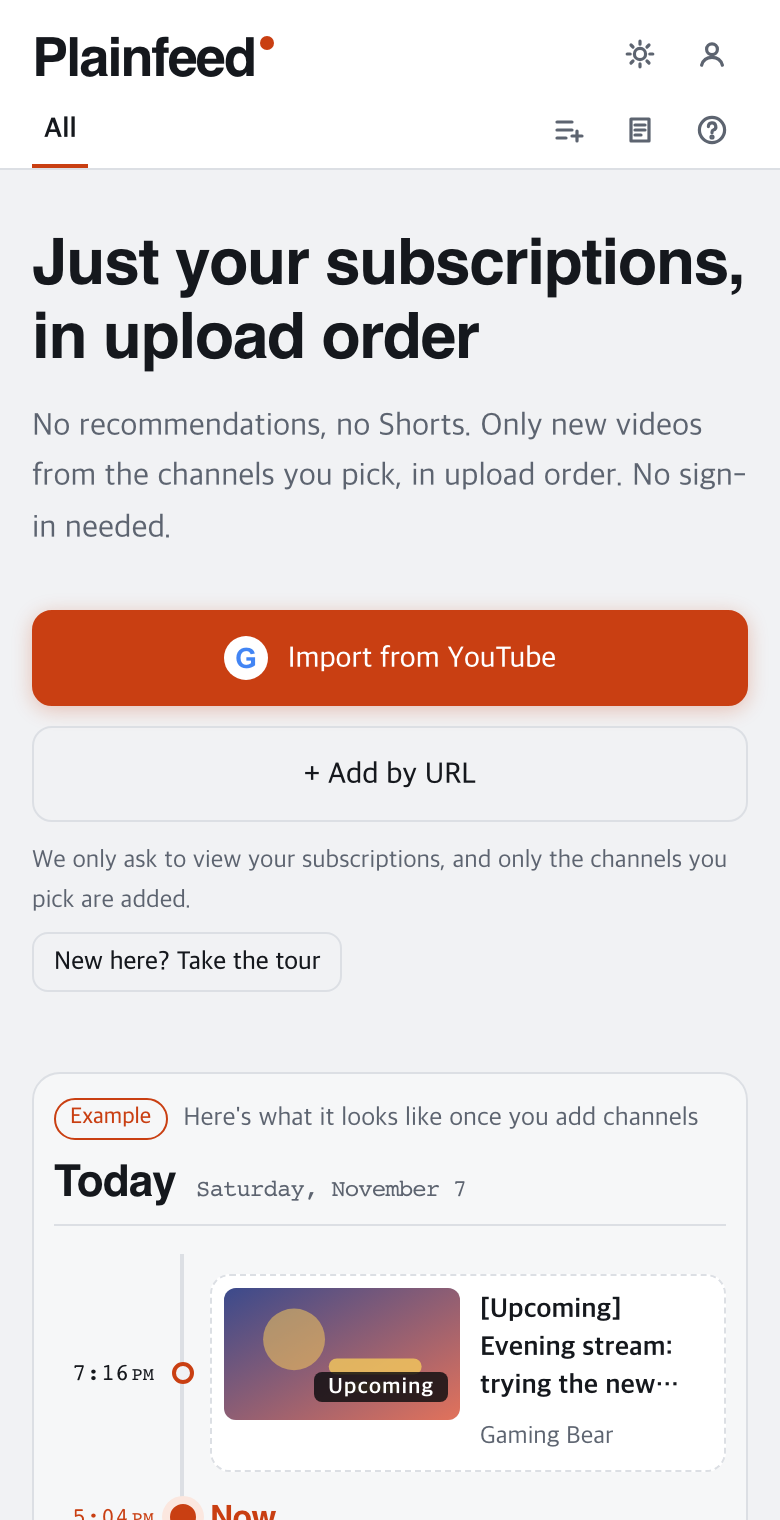
1. Import your subscriptions
In short: choose your Google account, allow access, and check the channels you want.
- Open plainfeed.app and tap Import from YouTube.
- Choose the Google account you use for YouTube and allow View your YouTube account (read-only).
- When your subscriptions appear, pick only the channels you want. Nothing is selected at first; use Select all or search by name to choose quickly.
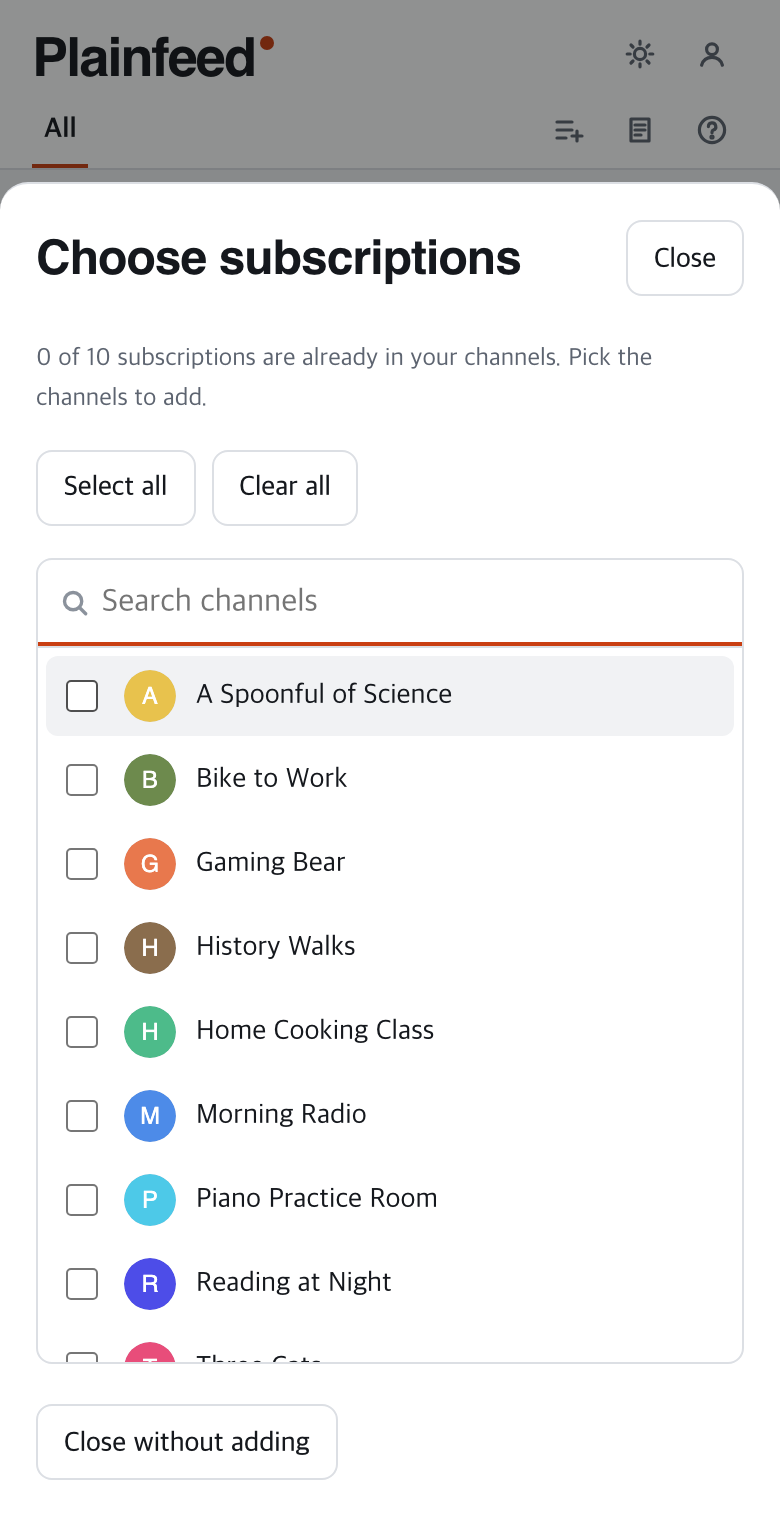
You can have up to 100 channels. If you subscribe to a lot, start with the ones you watch most and add more later in Channels.
2. Watch the timeline
In short: new videos stack up in the order they were posted, and an orange dot means not watched yet.
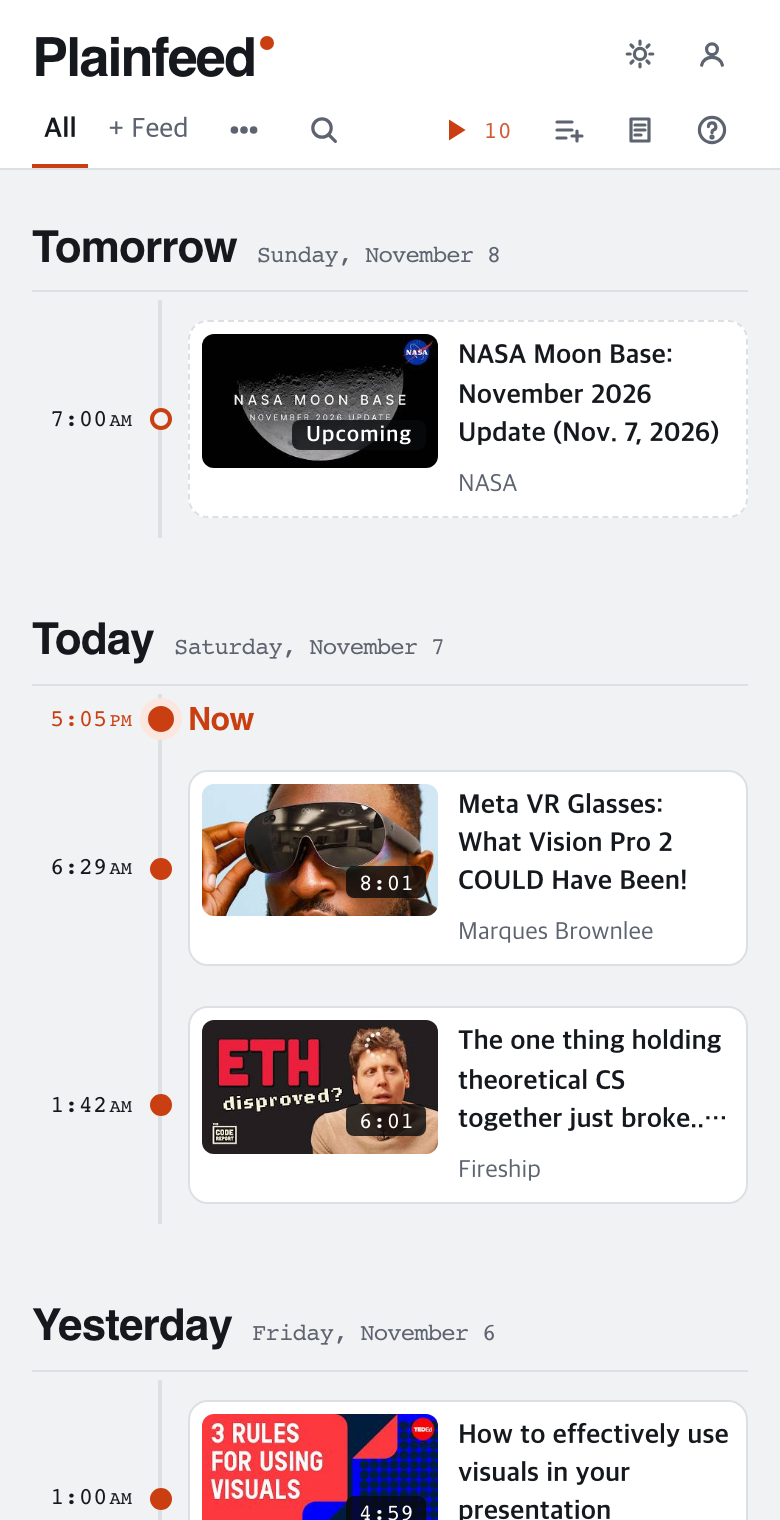
- Tap a video and it plays right there in YouTube's player.
- Tap ▶ Play on the right of the tab bar (on phones, ▶ with a number) to play only unwatched videos, one after another. It never moves on to videos from channels you don't follow.
- Shorts and videos 3 minutes or shorter are filtered out automatically (short live-stream replays stay).
3. Good to know
- Access: we only ask Google for read-only access to your YouTube account, and use just your subscriptions. Plainfeed can't upload videos or post comments.
- Import again every 30 days: YouTube's policy means imported subscriptions need to be imported again every 30 days. After 25 days, an Extend now button appears above the timeline.
- Without a Google account: tap Add by URL on the home screen and paste a YouTube channel URL. Channels added this way don't have the 30-day limit.
- On your phone's home screen: on iPhone use Safari's Share → Add to Home Screen, on Android Chrome's menu → Add to Home screen, and it opens like an app.
Wrapping up
Once your channels are in, there's little else to do. New videos stack up on the timeline, and when you've seen them, you close the tab. Feeds for grouping channels by topic, and sharing, are covered in the guide.