YouTube notifications not working for subscriptions: what to do
You've probably found out days later that a channel you subscribe to posted a new video, because no notification came. Or the opposite: notifications come so often that you tap one and end up watching other videos too.
The short answer: subscription notifications default to Personalized, so you don't get one for every new video. The simplest approach is to switch only the channels you really don't want to miss to All, and check the rest on the Subscriptions tab instead of waiting for notifications. This is based on YouTube Help (Manage YouTube notifications), and I checked the screens on the web (Chrome) and the Android YouTube app (21.44) on November 25, 2026 (with the interface in Korean and Japanese, so a few English labels may differ slightly).
Check these first
In short: if no notifications come at all, a setting is often turned off.
- Check that notifications for the YouTube app are on in your phone's settings.
- In YouTube Settings → Notifications, check that Subscriptions (activity from channels you subscribe to) is on.
- Check that the channel's bell isn't set to None (see step 2).
1. Why notifications don't come
In short: when you subscribe, notifications start at "Personalized," which only covers some videos YouTube picks.
- When you subscribe to a channel, its notification bell is set to Personalized automatically.
- Personalized covers only some regular uploads, Shorts and live streams. YouTube Help says it decides using signals like your watch history, how often you watch the channel, how popular a video is, and how often you open notifications.
- If you unsubscribe and subscribe again, the setting goes back to Personalized or None.
- Channels set as made for kids don't send notifications, and the bell is fixed to None.
2. Set "All" only for channels you don't want to miss
In short: click or tap the Subscribed button with the bell on it and switch to "All."
- Open the channel page, or one of its videos.
- Click or tap the Subscribed button with the bell icon.
- Choose All. You can choose All, Personalized or None.
With All, you get notifications for regular uploads and live streams. YouTube Help notes that even then, not every upload will result in a notification, and you may get some personalized Shorts notifications based on your subscriptions and watch history.
Setting every channel to All means a flood of notifications, so it works best for the few channels you really don't want to miss.
3. Turn off notifications for videos picked by the recommendation algorithm
In short: in Settings → Notifications, turn off Recommended videos, and you'll get fewer notifications about videos picked from your watch history.
Some notifications aren't new videos from channels you subscribe to; they're videos YouTube's recommendation algorithm picked from your watch history.
- On the web, profile picture at the top right → Settings. In the phone app, You at the bottom → Settings (gear) at the top right.
- Notifications
- Turn off Recommended videos (notifications about videos you might like, based on what you watch).
Leave Subscriptions on. Among the web's email notification options, there was no choice to get new videos from your subscriptions by email (checked November 25).
4. Check without notifications: the Subscriptions tab
In short: open the Subscriptions tab once a day and skim it from the top, and you're less likely to miss anything, even without notifications.
- Web: open Subscriptions in the left menu, and videos from your subscriptions are listed newest first.
- Phone app: in the row of channels at the top of the Subscriptions tab, channels with new content get a dot. Below it, the Today chip shows only today's uploads, the Videos chip leaves out Shorts, and the Unwatched chip shows only what you haven't watched.
Turning notifications off and checking only at set times also cuts down on tapping a notification and drifting into other videos. You can also follow channels in an RSS reader (YouTube RSS feed: how to subscribe to a channel by its ID).
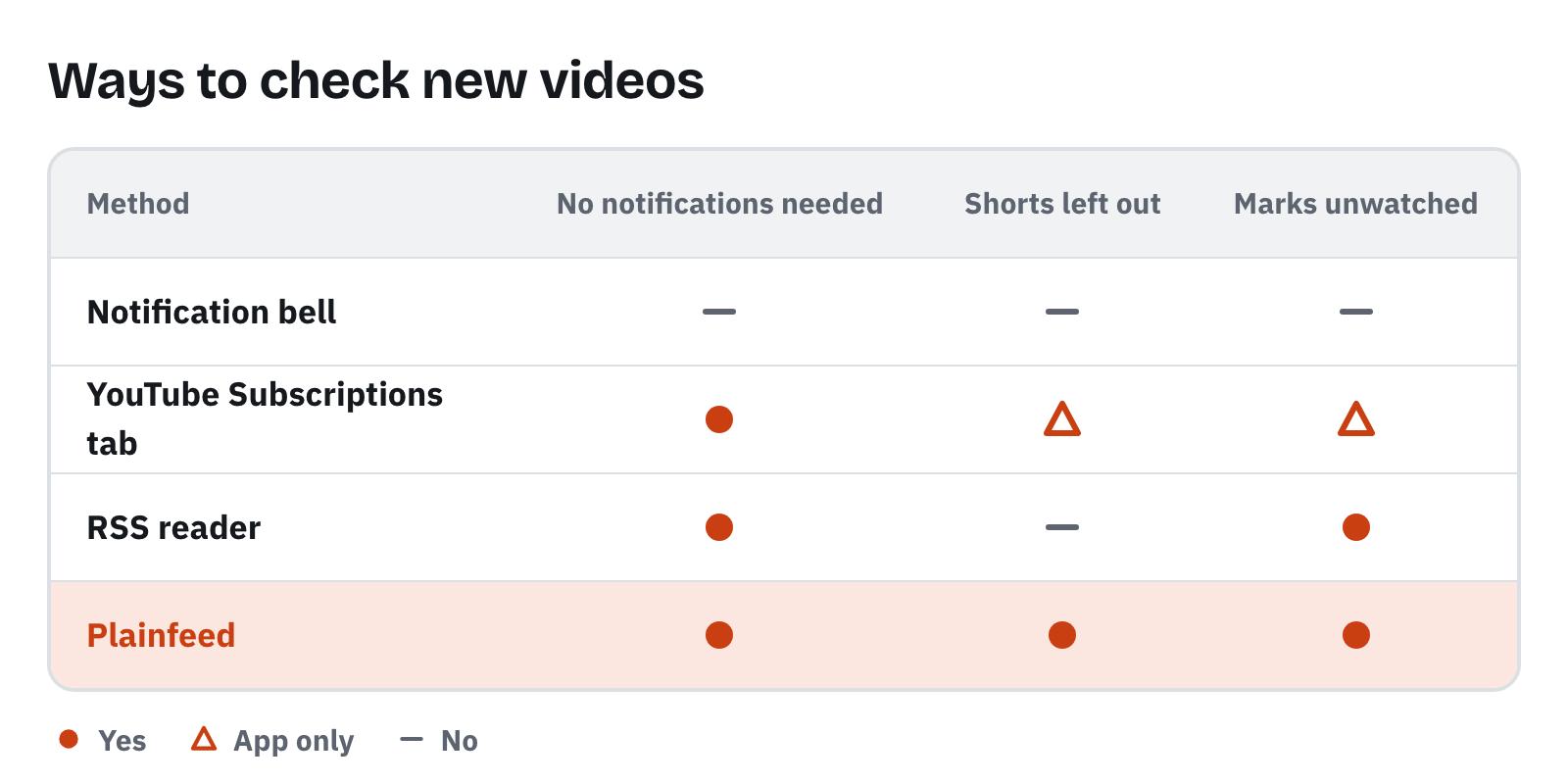
● Yes · △ app only · – No.
New videos every time you open it, no notifications needed: Plainfeed
In short: only new videos from the channels you've added show up, grouped by date, so each time you open it you see right away what's new.
Notifications keep you from missing things, but the YouTube screen you land on also has videos picked by the recommendation algorithm. The Subscriptions tab's default view mixes in Shorts too.
Plainfeed is a separate website, not an official YouTube service. Add the channels you want to watch, and only their new videos show up on a timeline, grouped by date.
- New videos usually show up on the timeline within 30 minutes of being posted. If you keep it open, it checks again every 10 minutes.
- Unwatched videos are marked by a dot on the left of the timeline, and the number next to ▶ Play is how many you haven't watched.
- Shorts are left out from the start.
- You can import your subscriptions all at once with your Google account, or paste a channel address.
Wrapping up
Missing notifications usually come down to a setting that's off or the default Personalized setting. Switch the bell to All only for the channels you don't want to miss, and turn off notifications for videos picked by the recommendation algorithm. For the rest, skimming the Subscriptions tab once a day instead of relying on notifications is enough. For a cleaner way to see your subscriptions, see How to see only new videos from channels you subscribe to on YouTube.