YouTube RSS feed: how to subscribe to a channel by its ID
When you open the YouTube app, the recommended videos on the home page and in the Up next list tend to catch your eye before the video you came for. If you only want to check new videos from channels you follow, you can get them through RSS without opening YouTube at all.
RSS is a file a site publishes listing its new posts in a standard format. Add it to an RSS reader app and new posts pile up in the reader as they're published. Every YouTube channel has one of these files too.
The short answer: find the channel ID and add it to the address below, and you have that channel's RSS feed. Many RSS readers today will even find it for you if you just paste the channel's address. I checked this on the web (Chrome) on November 25, 2026. YouTube doesn't document this feature officially, so it may change.
1. The YouTube RSS address
In short: add the channel ID after https://www.youtube.com/feeds/videos.xml?channel_id=.
https://www.youtube.com/feeds/videos.xml?channel_id=UCxxxxxxxxxxxxxxxxxxxxxx
- A channel ID is 24 characters starting with
UC. - A channel address in the
@nameform (likeyoutube.com/@Google) can't go here. You need the channel ID. - Playlists work the same way: add the playlist ID after
?playlist_id=.
2. Find the channel ID
In short: on the channel page, open the description → Share channel → Copy channel ID.
- Open the channel page in a browser on your computer.
- Click …more at the end of the description under the channel name.
- At the bottom of the panel, click Share channel and choose Copy channel ID.
- Add the copied
UC…to the address above.
On a phone, copy the channel's address in the YouTube app with ⋮ → Share → Copy link on the channel page, then paste it into a reader that accepts channel addresses (Feedly or Feeder below).
The channel page also carries this RSS address as a hidden link. That's why RSS readers and browser extensions can find the feed from just the channel's address.
3. Add it to an RSS reader
In short: paste the channel address or the RSS address into the reader's add-subscription box.
- Feedly (web and apps, help): says you can follow a channel by searching its name or entering the channel's address directly. Playlist addresses work too.
- Feeder (feeder.co, web and apps, help): says to choose YouTube under Add feed and paste a channel address (
@nameaddresses work) or a playlist address. - If your reader doesn't recognize channel addresses, enter the RSS address from step 1 directly.
How often new videos show up depends on the reader. A reader also lets you see new YouTube videos alongside blog and news feeds in one place.
4. Move all your subscriptions at once
In short: download your subscription list from Google Takeout and convert it to OPML, then import it into any reader that supports OPML.
- In Google Takeout, select only YouTube and YouTube Music, click All YouTube data included, keep only subscriptions, and export.
- The
subscriptions.csvfile in the archive has one line per channel: channel ID, channel URL and channel title. - Put each channel ID into the address format from step 1 and build an OPML file like the one below (extension
.opml), then use the reader's OPML import. In a spreadsheet, adding the address and tags before and after the channel ID column makes all the lines at once.
<opml version="2.0"><body>
  <outline type="rss" text="Channel name" xmlUrl="https://www.youtube.com/feeds/videos.xml?channel_id=UC…"/>
  <!-- one line per channel -->
</body></opml>
Feedly says it has no way to pull in your YouTube account's subscriptions all at once. Check whether your reader supports OPML import.
5. Things to know
In short: Shorts are mixed in, each feed only has the latest 15 videos, and sometimes feeds stop entirely.
- Latest 15: the channel feed I checked on November 25 had its 15 most recent videos. Your reader keeps older ones it already collected.
- Shorts are mixed in: Shorts come in alongside regular videos. When I fetched one channel's feed on November 25, 12 of its 15 entries were Shorts links (
/shorts/). - No duration or live status: it only has the title, upload time, thumbnail, description and view count.
- Sometimes it stops: since it isn't an official feature, it can change or go down. On October 30, every feed I checked around 15:50 KST, big channels included, returned 404, and they were back by 16:08 (what happened then).
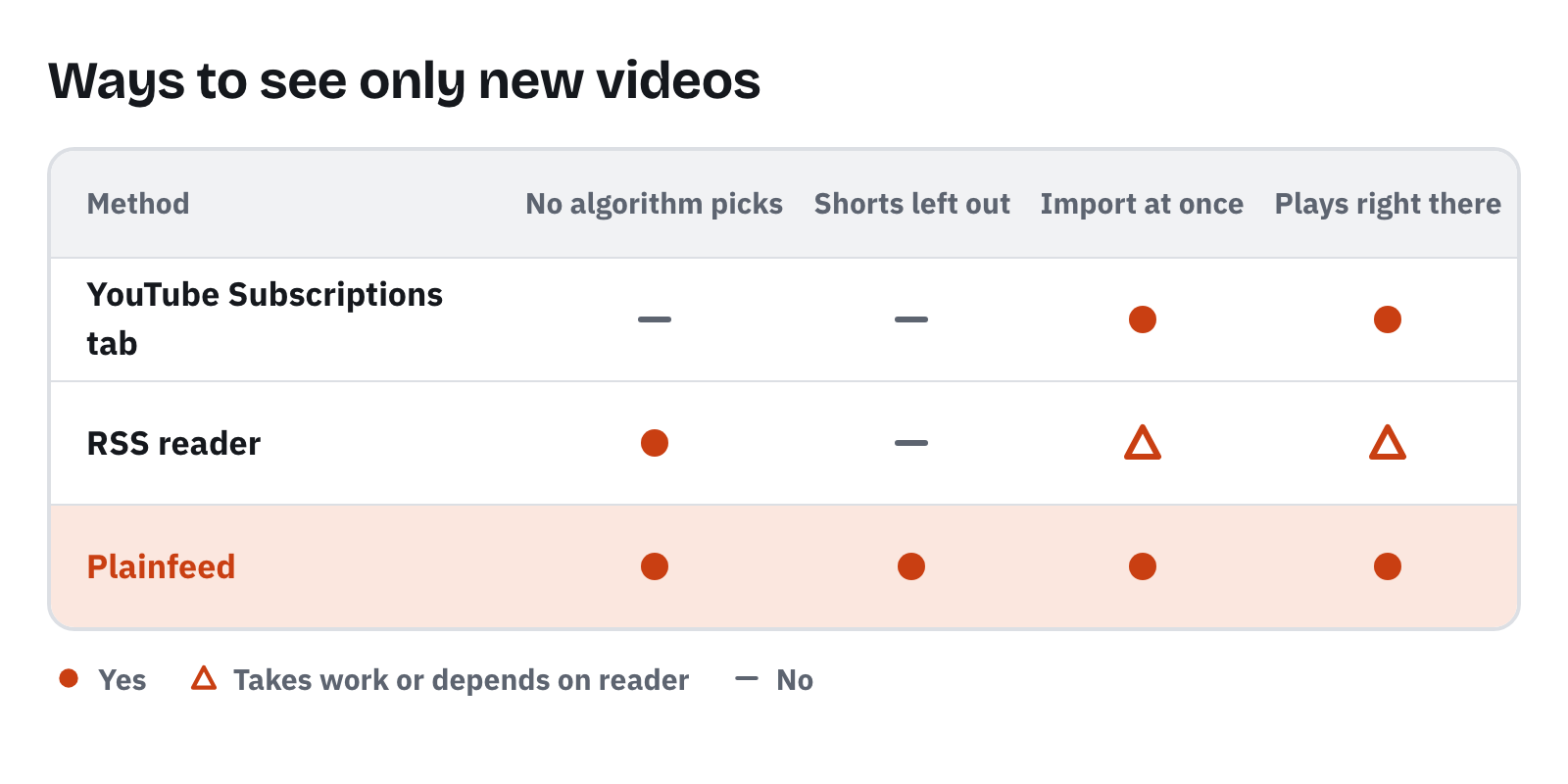
● Yes · △ takes some work or depends on the reader · – No.
Another way to see only new videos, without Shorts: Plainfeed
In short: a website that shows only new videos from the channels you've added, by date, without algorithmic recommendations or Shorts.
An RSS reader is great because you can check new videos without going through YouTube's recommendation algorithm. It does take some work to find channel IDs and convert list files, though, and Shorts still come through.
Plainfeed is a separate website, not an official YouTube service. Add the channels you want to watch, and only their new videos build up on a timeline grouped by date.
- Import your subscriptions all at once with your Google account, or paste a channel address (
@nameaddresses work). - Shorts are left out from the start:
/shorts/links and videos 3 minutes or shorter are removed, while short live-stream replays stay. - Live streams show as LIVE while they're on, and streams starting within 24 hours are marked Upcoming.
- Videos play on the site in YouTube's official player.
- ▶ Play plays only the unwatched videos from your channels, one after another, and stops when you've watched them all.
Wrapping up
If you know the channel ID, you can follow a YouTube channel in an RSS reader too. The channel page's description → Share channel → Copy channel ID is the quickest route, and you can move lots of channels at once with the subscription file from Google Takeout. Just keep in mind that it isn't an official feature and can sometimes stop. For ways to see only new videos from your subscriptions within YouTube, see How to see only new videos from channels you subscribe to on YouTube.