How to turn off autoplay on YouTube (so the next video doesn't start)
When a YouTube video ends, the next one starts right away. You didn't pick it, but the screen has already moved on, so you just keep watching. That's autoplay. When it's on, a related video chosen by YouTube's recommendation algorithm plays after the current one ends.
In short: on a computer, turn it off with the switch at the bottom of the player. On your phone, use the switch above the player or the app's settings. This guide follows YouTube Help (Autoplay videos), and I checked where the menus are on November 19, 2026 in YouTube on the web (Chrome) and in the Android YouTube app (21.44). YouTube changes its screens often, so names may differ a little by device or version.
1. How to turn off autoplay on a computer
In short: open any video and turn off the autoplay switch at the bottom right of the player.
- Open the watch page of any video.
- In the control bar at the bottom of the player, on the right, click the small switch to the left of the captions and settings (gear) buttons.
- Once it's off, the next video won't start when this one ends.
I turned autoplay off in a signed-out browser and played a video to the end. It stopped at the end and didn't move on to another video.
2. How to turn off autoplay in the phone app
In short: tap the switch at the top of the player, or turn it off once in Settings.
From the watch page:
- Play a video and tap the screen once to show the controls.
- Tap the autoplay switch at the top of the player to turn it off.
From Settings (checked in the Android app 21.44):
- You at the bottom → Settings (gear) at the top right
- Playback
- Turn off Autoplay next video.
The menu says: "When autoplay is enabled, a suggested video will automatically play next." I didn't check on iPhone. YouTube Help says profile picture → Settings → Autoplay, but it may be under Playback, as on Android.
3. How to turn off autoplay on a TV
In short: in the YouTube app on your TV, set Autoplay to off in Settings.
YouTube Help says to go to Settings → Autoplay in the YouTube app on your TV and turn it off. If you're casting from your phone, tap the control bar at the bottom of your phone's screen and use the switch there.
Good to know
In short: autoplay is set separately on each device. Turning it off on your computer doesn't turn it off on your phone.
- YouTube Help says you can have different autoplay settings on different devices. Turn it off once on each device you use.
- Even with autoplay on, tapping Cancel when a video ends stops the next one from starting.
- Autoplay also turns itself off after 30 minutes of inactivity on a mobile network, or after 4 hours on Wi-Fi.
- Autoplay is off by default for users aged 13–17, but they can turn it back on themselves. For a supervised child account, a parent can turn on Disable autoplay in Family Center so the child can't turn it back on.
Recommendations that stay when autoplay is off
In short: turning off autoplay only stops the next video from starting by itself. Recommended videos around the screen stay.
With autoplay off, I played a video to the end. The next video didn't start, but plenty of other videos were still on the screen.
- The Up next list beside (or below) the player stays. YouTube says it picks this list mainly based on the video you're watching.
- The video cards that appear over the player near the end (the end screen the uploader added) stay too.
- The home page recommendations and Shorts work separately from autoplay. I covered those in How to stop YouTube recommendations and How to hide YouTube Shorts.
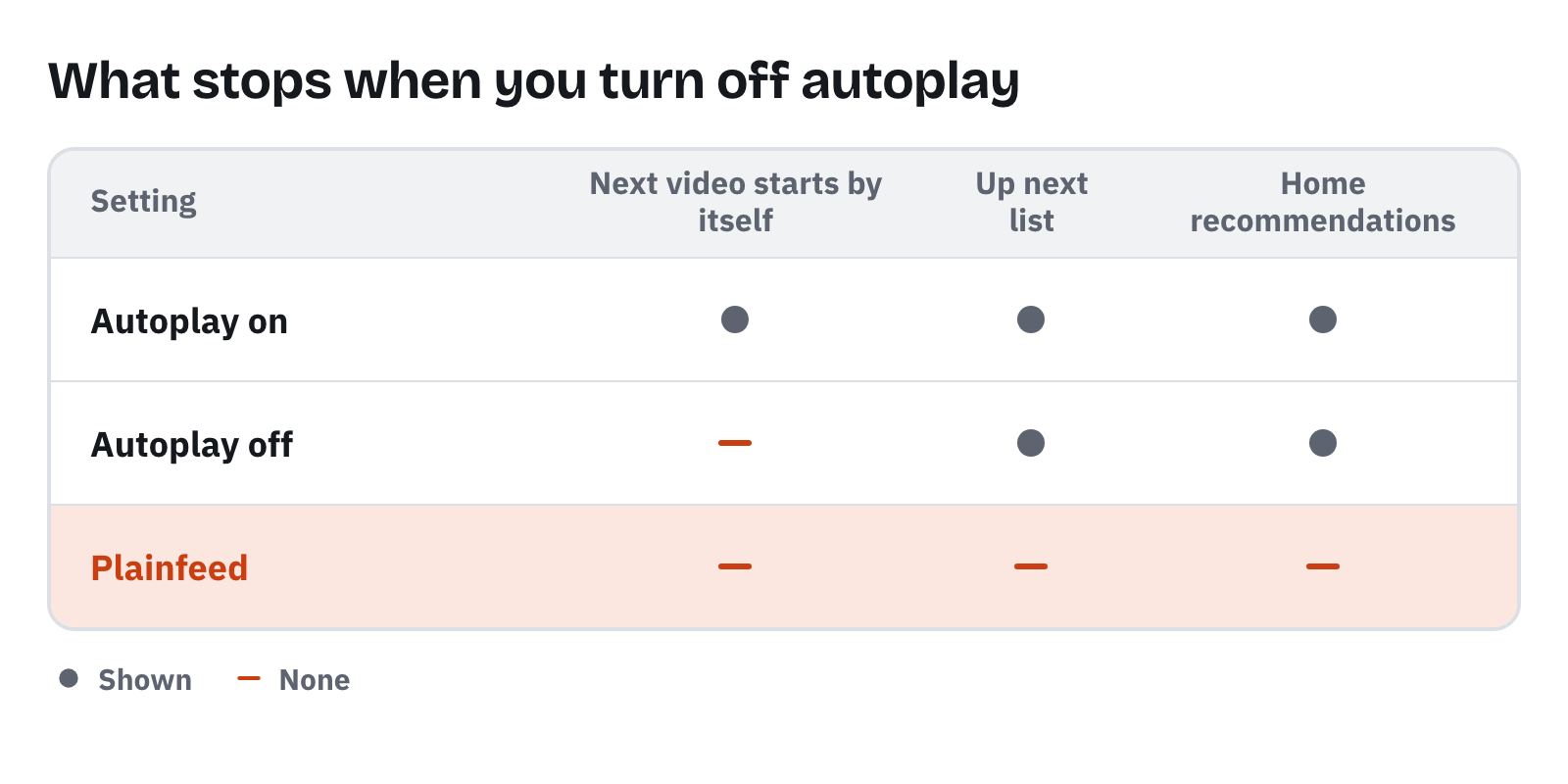
● Shown · – None.
To watch without algorithm-picked videos: Plainfeed
In short: regardless of the autoplay switch, you only see videos from channels you chose in the first place.
Turning off autoplay stops the next video from starting by itself. But YouTube still shows videos picked by its recommendation algorithm all over the screen, so it's easy to end up clicking one more.
Plainfeed is a separate website, not an official YouTube service. Add the channels you want, and only their new videos pile up by day. There's no home page or Up next list chosen by the recommendation algorithm, so it's easier to watch what you came for and close it.
- Import your subscriptions all at once with your YouTube account, or paste a channel URL to add it.
- Shorts are left out from the start.
- ▶ Play goes through only the unwatched videos from channels you added, and stops when you're done.
- To watch one at a time, turn off Keep playing on the watch screen. It stops after each video.
Wrapping up
If you don't want the next video to start by itself, turning off the autoplay switch on each device is the quickest fix. It's at the bottom of the player on a computer, and above the player or under Playback in Settings on your phone. Even with autoplay off, the Up next list and home page recommendations stay, so if you want to cut those down too, the guides linked above can help.