How to search only your YouTube subscriptions
Sometimes you want to find a video you think you saw from a channel you subscribe to. But the search box at the top of YouTube searches all of YouTube, so videos from channels you don't subscribe to pour in too. You can end up clicking something else before you find what you were looking for.
The short answer: YouTube has no way to search only your subscriptions. Instead, you can search one channel from its channel page, or all your subscriptions with your browser's find (Ctrl+F) on the Subscriptions tab on a computer. If you've already watched the video, you can also search your watch history. I checked the screens on the web (Chrome) and the Android YouTube app (21.44) on November 22, 2026. YouTube changes its screens often, so names may differ slightly by device or version.
1. The Subscriptions tab has no search box
In short: the Subscriptions tab has no box to search titles. The app lets you pick a channel and filter by type; the web shows just a newest-first list.
- Web: the top of the Subscriptions tab has only a Latest heading and an All subscriptions button. Videos are listed newest first.
- Phone app: there's a row of your channels at the top; tap one to see only its videos. Below it are filter chips such as All · Today · Videos · Shorts · Live · Podcasts · Posts · Continue watching · Unwatched.
- The magnifier on the app's All (all subscriptions) screen opens the regular YouTube search.
So to find "videos from my subscriptions that contain this word", you need one of the methods below.
2. Search within one channel: the channel page
In short: if you know which channel it was, the magnifier at the end of the channel page's tab row is the most direct option.
- Tap or click the channel name to open the channel page.
- Click the magnifier at the end of the row with tabs like Home · Videos · Shorts · Live · Playlists · Posts (checked on the web).
- Type a word, and it searches only that channel's videos.
It works one channel at a time, though, so it's hard to use if you don't remember which channel it was.
3. Search all your subscriptions: Subscriptions tab + Ctrl+F on a computer
In short: open the Subscriptions tab on a computer and use your browser's find to look for a title. You only scan videos from your subscriptions, in time order.
- Open the YouTube Subscriptions tab in a browser on your computer.
- Scroll down until you reach roughly when the video was uploaded. The further you scroll, the older the videos that load.
- Press Ctrl+F (Cmd+F on a Mac) and type a word that's likely in the title.
It only finds videos that have loaded on the page, so for older videos you need to scroll further. The Subscriptions tab also mixes in Shorts shelves and live streams, so your word may match those too.
4. Add the channel name in the YouTube search box
In short: putting the channel name before your search term tends to bring that channel's videos to the top. Other channels' videos still show up.
- The Filters on the search results page include Type (Video, Shorts, Channel and so on), Duration, Upload date (Today, This week, This month, This year), Features, and Prioritize (Relevance, Popularity). There's no option for subscriptions only.
- The upload date filter or the Recently uploaded chip above the results can cut down the number of results.
- Search results also show videos from channels you don't subscribe to. It's an easy place to drift into other videos, so it's best when you know exactly what you're looking for.
5. If you've already watched it: search your watch history
In short: if you've watched the video even once, watch history is the fastest place to look.
- Web: open History in the left menu, and there's a Search watch history box on the right.
- You can also search from My Activity in your Google Account. YouTube Help describes it as My Activity → YouTube History → Manage history → Search (View, delete, or turn on or off watch history).
- Videos you watched while watch history was turned off aren't saved, so you can't find them there.
6. Browser extensions
In short: in a computer browser, there are extensions that add a search box or filters to the Subscriptions tab.
Search the Chrome Web Store or Firefox Add-ons for a term like "subscription feed filter" and you'll find extensions that add keyword search or Videos/Live/Shorts filters to the Subscriptions tab. They aren't official YouTube features, so check the permissions they ask for and recent reviews before installing. They don't work in the phone app.
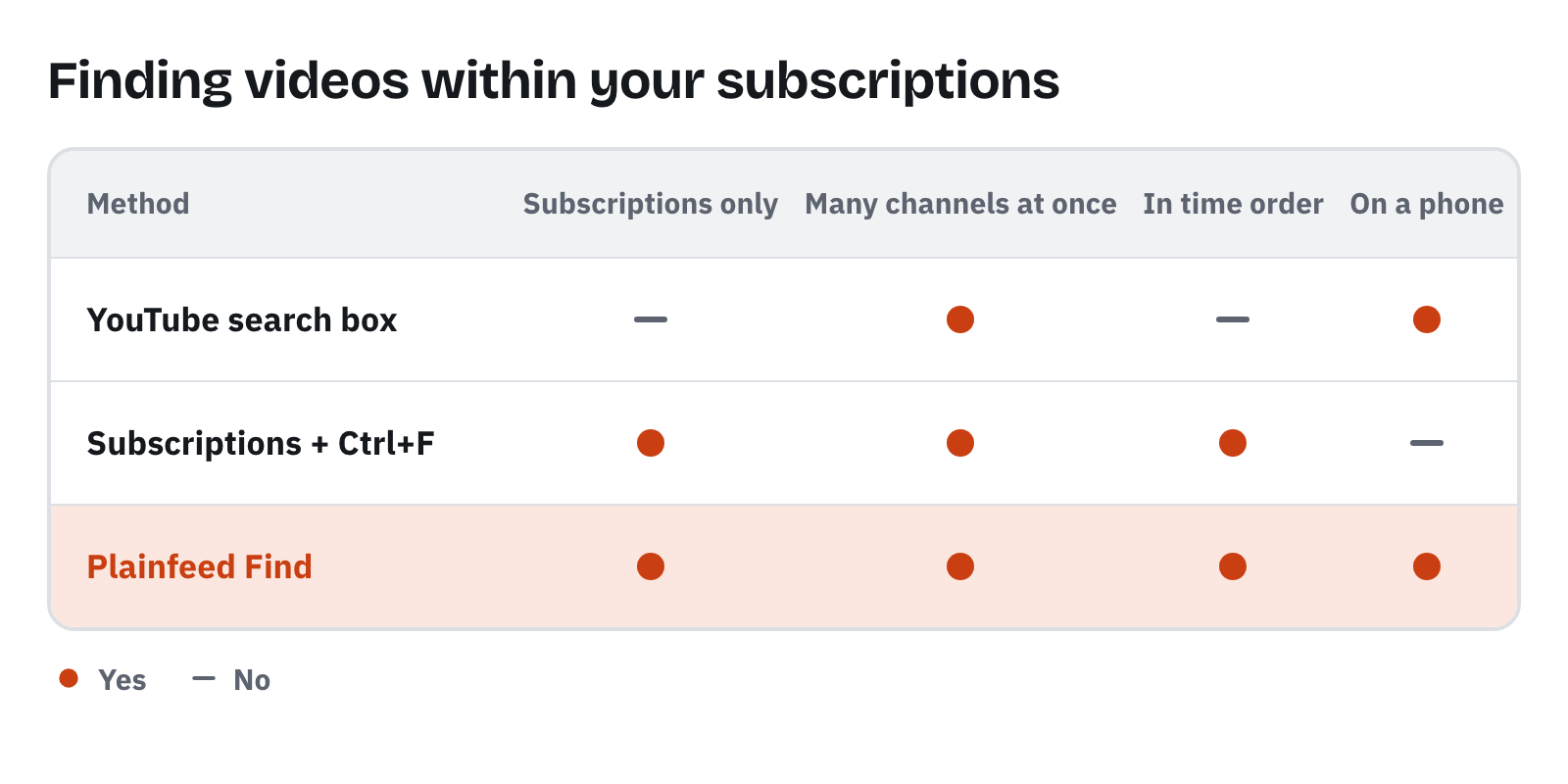
● Yes · – No.
Finding videos without algorithmic recommendations: Plainfeed
In short: it searches only the videos from channels you've added, so nothing else gets in the way while you look.
It's common to go to YouTube to find one video, click something else in the search results or on the home page, and end up watching for a while. You stay longer on what YouTube's recommendation algorithm shows you than on what you came for.
Plainfeed is a separate website, not an official YouTube service. Add the channels you want to watch, and only their new videos build up on a timeline grouped by date. You can search within it.
- Tap the magnifier at the end of the tab row and type a title or channel name, and only those videos stay on the timeline. They stay in time order.
- Type several words, and only videos containing all of them stay.
- Channels whose names match appear below the box. Tap one to keep only that channel's videos, then narrow down further by title.
- If you've split channels into feeds by topic, it searches within the feed you're looking at.
- The timeline shows the last 7 days by default, and you can extend it to 14 or 30 days in Manage channels.
- It works the same in a phone browser.
Wrapping up
If you know the channel, use the channel page search. To search all your subscriptions, use Ctrl+F on the Subscriptions tab on a computer. If you've already watched the video, watch history search is the fastest. The YouTube search box is handy for broad searches, but other videos pour in with the results, so it's best when you know exactly what you want. For other ways to see only videos from your subscriptions, see How to see only new videos from channels you subscribe to.