Catch up on a backlog of subscription videos (Plainfeed Hide, Find and Play)
Plainfeed is a website that shows new videos from the YouTube channels you pick, in upload order, without Shorts or videos chosen by YouTube's recommendation algorithm. If you come back after a few days, quite a few unwatched videos may have piled up. The number next to ▶ Play in the tab bar (▶ and a number on a phone) is how many unwatched videos are in the current tab.
Instead of watching the backlog top to bottom, here's an order for watching only what you want and skipping the rest.
- Use Hide to leave out the kinds of videos you won't watch.
- Use Find to keep only the videos you want.
- Watch what's left in order with Play.
- Mark the rest as watched.
1. Leave out what you won't watch: Hide
Setting: turn these on in Channels (the icon at the top right on a phone) → My channels.
- Hide short videos: leaves out videos under 5, 10 or 20 minutes. Use it when you only want to settle in with longer videos.
- Hide live and upcoming streams: keeps only uploaded videos.
- Hide watched videos: takes videos you've watched off the timeline, so only unwatched ones are left.
Once on, these videos are left out of both the timeline and Play, in the All tab and every feed tab. If you're signed in, these settings follow you to your other devices too. There's a picture of the screen in the post for parents.
2. Keep only the videos you want: Find
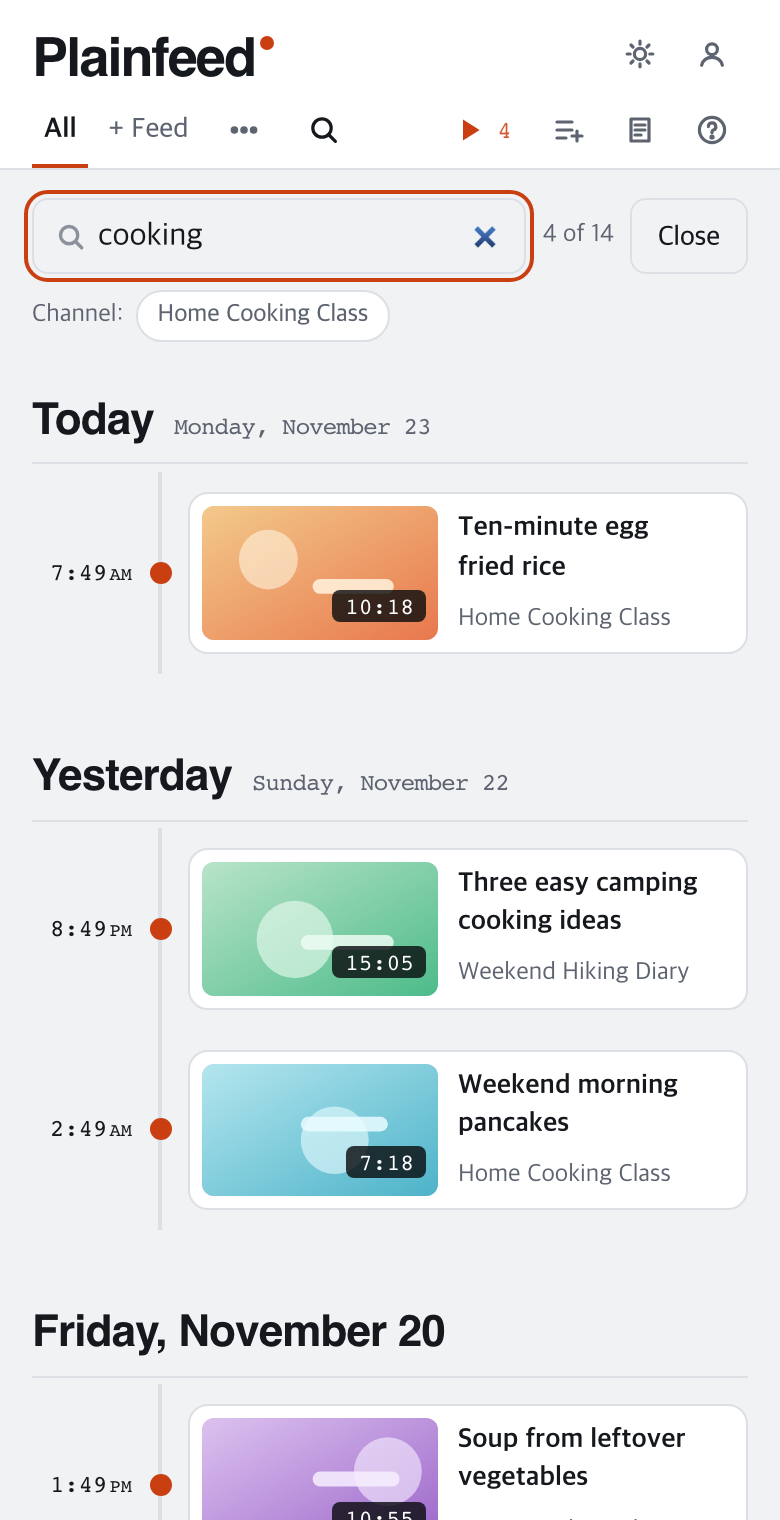
Setting: tap the magnifying glass in the tab bar and type a title or channel name.
- Only videos whose title or channel name contains what you typed stay on the timeline. They stay in time order.
- Next to the box you'll see how many are left, like "4 of 14".
- Channels whose names match appear below the box. Tap one to keep only that channel's videos, then narrow down further by title.
- Type several words separated by spaces, and only videos containing all of them stay.
- When you're done, tap Close. What you typed is cleared and the timeline goes back to normal.
3. Watch what's left in order: Play
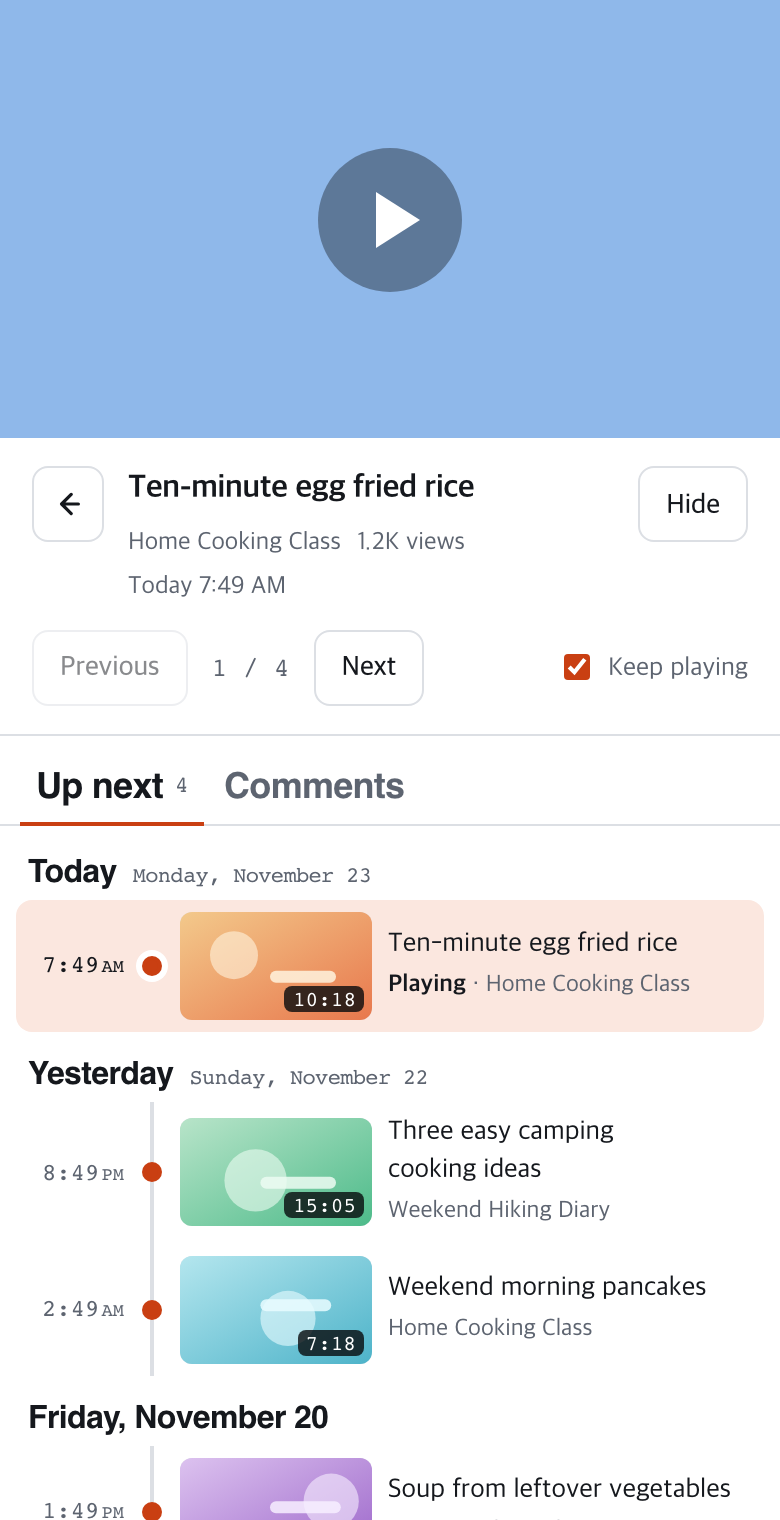
Setting: with Find on, tap ▶ Play.
- With Find on, Play only plays the unwatched videos among the matches. The number in the tab bar changes to match.
- Videos play newest first, and you can skip with Previous and Next below the player.
- To stop after each video, turn off Keep playing.
- A video counts as watched after 30%, or once you move past it in the player's list. The dot on the left of the timeline shows it.
4. Skip the rest at once: Mark all as watched
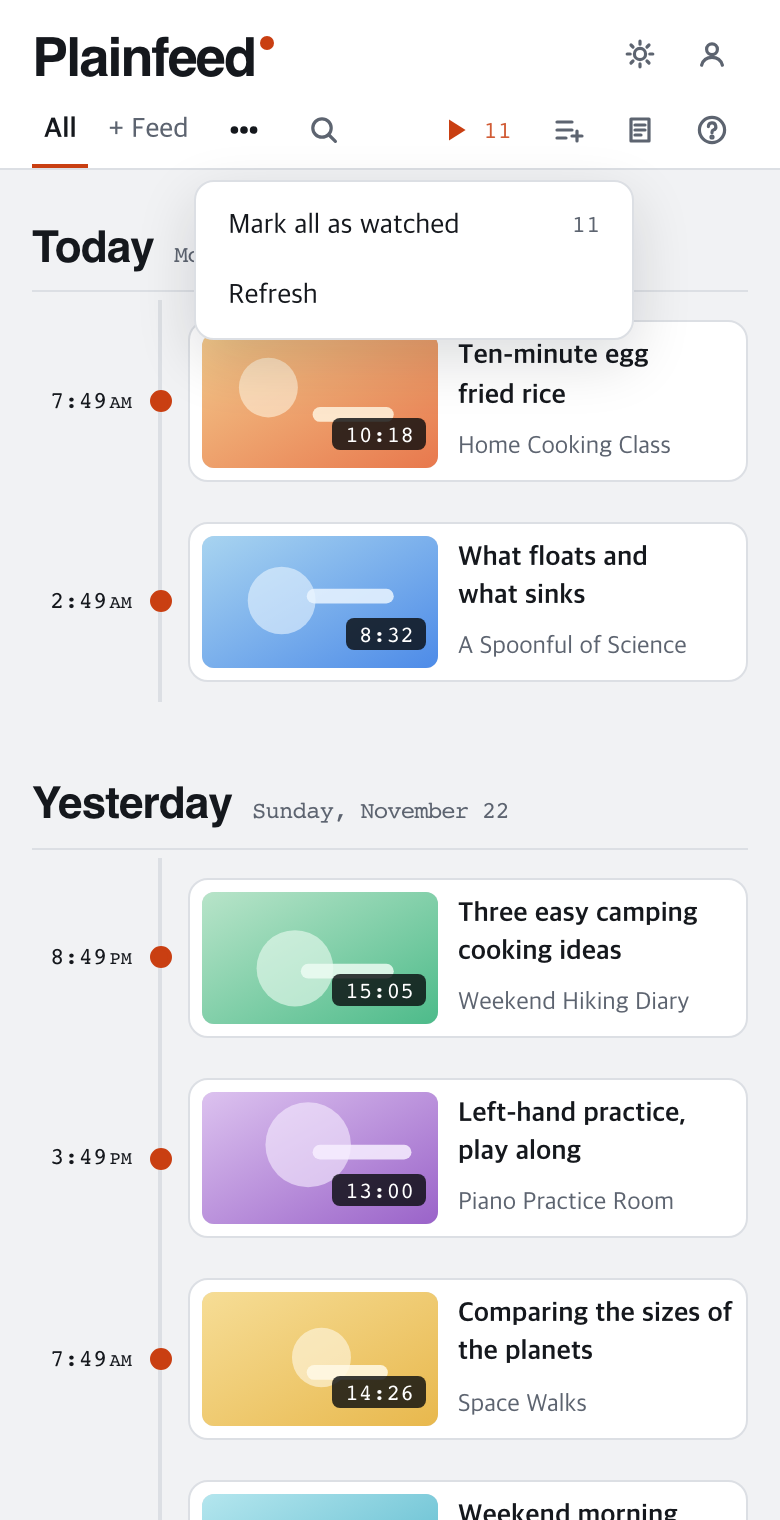
Setting: tap ⋯ at the end of the tab bar → Mark all as watched.
- Every unwatched video in the current tab is marked as watched. The number in the menu is how many will change.
- For a few seconds afterward, Undo appears so you can cancel.
- With Find on, only the matches are marked as watched. Use it with Find when you want to skip just one channel or topic.
- Live and upcoming streams stay as they are.
Pick up videos you stopped partway through
Setting: tap ⋯ at the end of the tab bar → Continue watching.
Videos you close partway while catching up get a progress bar under the thumbnail and collect in Continue watching. Open one again to resume where you stopped. Once you've watched nearly all of it (over 90%), it leaves Continue watching.
At a glance
| What you want | Setting |
|---|---|
| Leave out short videos or live streams | Hide options in Channels → My channels |
| Stop seeing watched videos | Hide watched videos |
| Keep only one topic or channel | The magnifying glass in the tab bar |
| Watch what's left in order | ▶ Play |
| Watch one video at a time | Turn off Keep playing |
| Skip the rest at once | ⋯ → Mark all as watched |
| Resume a video you stopped | ⋯ → Continue watching |
Wrapping up
To clear a backlog, cut down the kinds of videos with Hide, pick what to watch with Find, watch it with Play, and mark the rest as watched. If you've split channels into feeds by topic, do the same in each feed tab. The guide explains each button in more detail. If you have questions, write to [email protected].