How to manage and clean up your YouTube subscriptions
Subscriptions pile up fast, and the Subscriptions feed overflows. New videos from the channels you meant to watch get buried, and some channels leave you wondering when and why you ever subscribed.
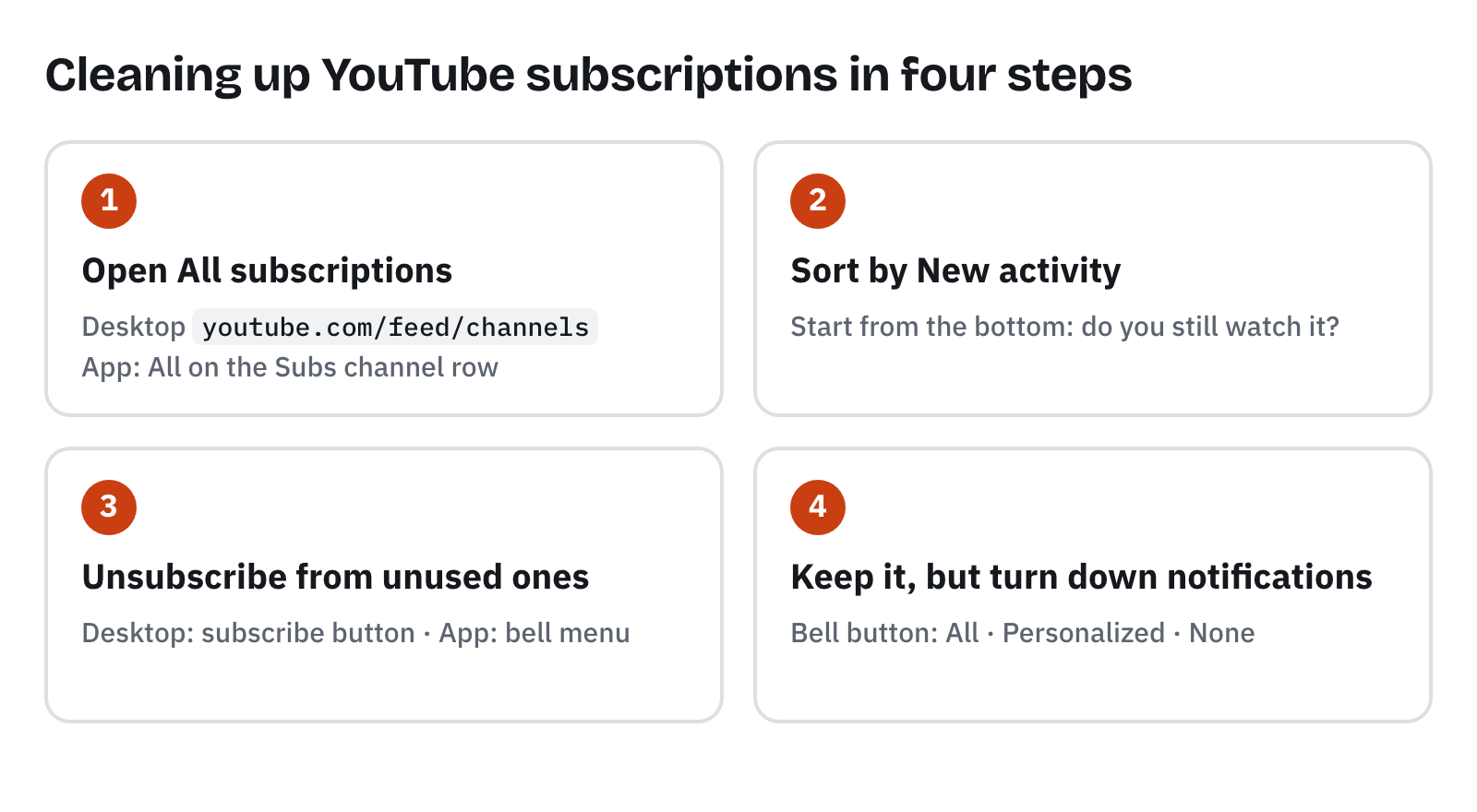
This guide walks through cleaning up subscriptions inside YouTube, in order. In short: open the All subscriptions page, sort by New activity, and start from the bottom. I checked where everything is on November 16, 2026, in the YouTube website on desktop Chrome and in the Android YouTube app (21.44). I only opened the sort menu and buttons to look; I didn't actually unsubscribe from anything. YouTube's screens change often, so things may differ slightly by device and version.
1. Open the All subscriptions page
In short: there's a separate page that lists every channel you subscribe to, one per row. Start your cleanup there.
- Desktop: open
youtube.com/feed/channelsin the address bar to get the All subscriptions page. - Phone app: tap Subs at the top of Home, then All at the right end of the row of channel pictures to open the same All subscriptions page.
Each row shows a channel's name and handle, with a notification (bell) button on the right. In the phone app, you can also search channel names with the magnifier at the top.
2. Sort by New activity and start from the bottom
In short: switch the sort to New activity and look at the channels at the bottom first. That makes it easier to start with channels that have been quiet for a while.
Tap Most relevant at the top to see three options: Most relevant, New activity and A–Z (on both desktop and the app). As the name suggests, New activity moves channels with recent activity up, so you can work up from the bottom and decide channel by channel whether you still watch it.
YouTube Help doesn't say exactly how this sort works. Treat "the lower it is, the longer it's probably been quiet" as a rough guide only.
3. Unsubscribe
In short: you can unsubscribe straight from the button on a channel's row.
- Desktop: click the subscribe button on the right of the channel's row and choose Unsubscribe.
- Phone app: tap the bell button (with the arrow) on the right of the channel's row. Notifications and Unsubscribe appear at the bottom.
YouTube Help also describes opening one of the channel's videos, tapping the notification bell under the player, and choosing Unsubscribe (Subscribe to channels). I couldn't find a way to unsubscribe from several channels at once, so this guide covers doing it one channel at a time.
For reference, YouTube Help says you can subscribe to up to 75 channels a day, and generally up to 2,000 in total. If you're close to that, it's time to clean up.
4. Keep a channel but turn down notifications
In short: if you want to stay subscribed but get too many notifications, change only the notifications from the bell button.
From the same bell button, you can choose All, Personalized or None. According to YouTube Help, subscribing turns on Personalized notifications by default, which cover only some uploads. Choose All to be notified of every long-form upload and live stream. If you unsubscribe and subscribe again, the setting resets to Personalized or None (Manage YouTube notifications).
That's what I found inside YouTube
YouTube's subscription list is a single list. You can sort it, unsubscribe and adjust notifications, but I couldn't find a way to group channels into folders and view them separately. So if deleting feels like a waste and the real problem is that topics look mixed together, this guide on splitting your subscriptions into study and hobby may fit better.
To pick only the channels you watch: Plainfeed
In short: keep your YouTube subscriptions as they are, and collect new videos from just the channels you watch now.
Plainfeed is a separate website, not an official YouTube service. Only new videos from the channels you add stack up, in the order they were posted.
- Load your subscriptions with your YouTube account and pick the channels to add. Later, remove channels you stop watching under Channels; right after removing one, you can bring it back with Undo.
- Removing a channel there leaves your YouTube subscription untouched, so it's easy to add it back later.
- Group the channels you keep into feeds to view them by topic.
Wrapping up
Just opening the All subscriptions page, sorting by New activity and starting from the bottom makes a cleanup much faster. Turn down notifications for channels you keep, and if things look mixed together, split them by topic. There are browser extensions that unsubscribe from many channels at once, but they press Unsubscribe for you while signed in to your account, so check them carefully before using one.