How to watch your YouTube subscriptions in upload order
The Subscriptions tab does show new videos in roughly the right order. But even there, I kept tapping the Shorts, community posts and related-video shelves mixed in, and ended up watching a lot more of YouTube than I meant to.
If you can hold back, that's fine. I couldn't. So I looked for a way to keep some distance from what the algorithm picks, and watch only new videos from the channels I chose, in order.
When I showed Plainfeed to people, the first question was "How is that different from YouTube's Subscriptions tab?" So I went back and checked what the Subscriptions tab actually shows.
I checked this on November 12, 2026, on YouTube's website in Chrome on desktop, signed in. The Subscriptions tab in the phone app showed the same order and labels. YouTube changes its screens often, so if a menu name differs, look for something close.
1. The Subscriptions tab is already newest first
In short: open Subscriptions and new videos run newest first from the top.
On desktop, click Subscriptions in the left menu and you'll see a heading that says "Latest", with videos below it. That heading is just a heading, not a button. There's no menu to switch to popular or oldest first.
On the day I checked, the tab listed 198 videos going back two weeks, and they were in upload order from the top. Live replays, labeled like "Streamed 7 hours ago", sat in between at the time they aired.
2. But "when" is fuzzy
In short: the order is right, but it's hard to tell where a day ends or the exact time.
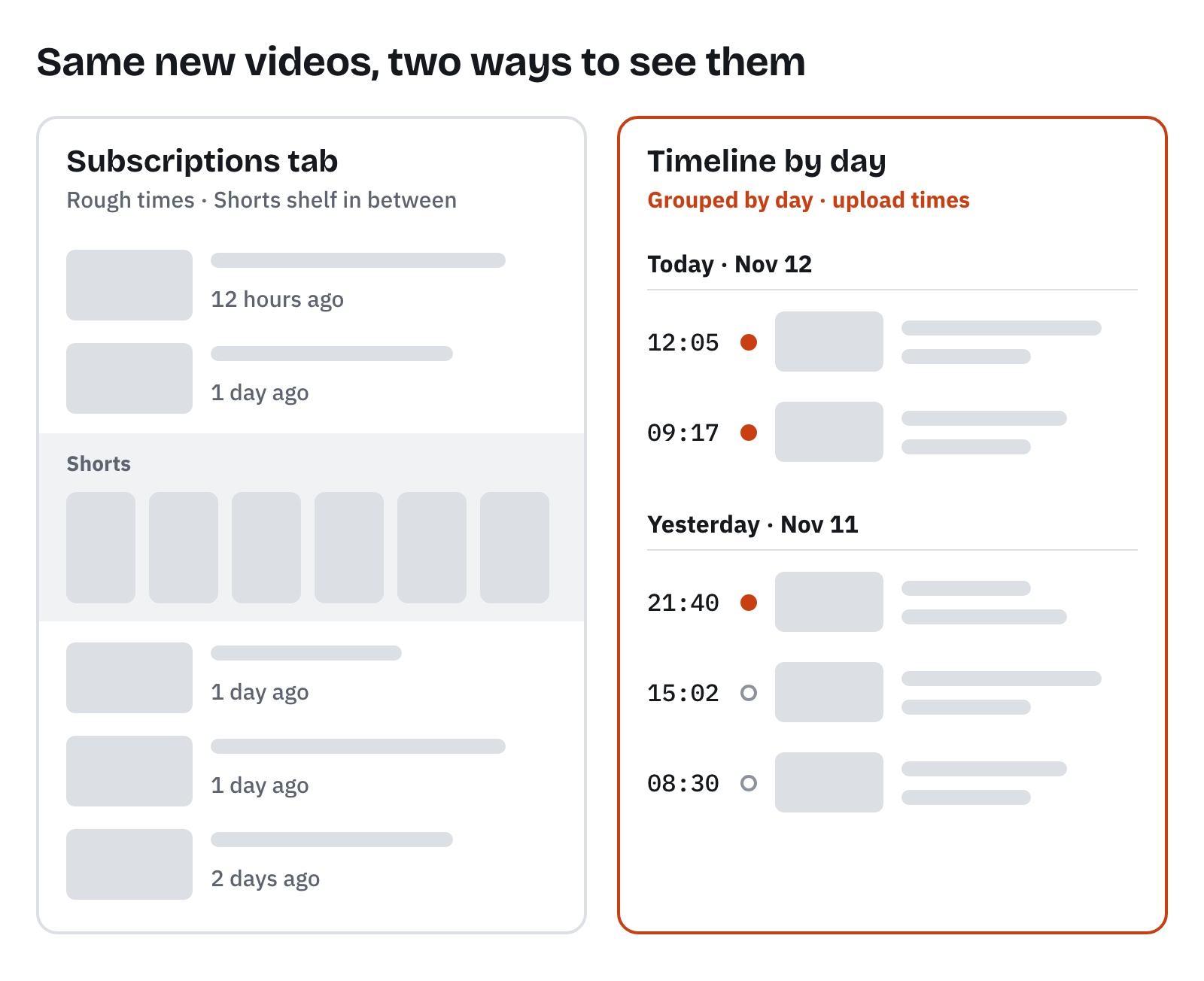
- Only rough times. You see "12 hours ago", "1 day ago", "2 weeks ago". That day 15 videos said "1 day ago", and I couldn't tell from the screen which were from yesterday afternoon and which from the night before.
- No breaks between days. Today, yesterday and the day before run together, so it's hard to find where you left off.
- Other shelves get in the way. That day a row of 15 Shorts sat in the 10th spot. Other times a community post or a related-videos shelf shows up. Scrolling down in order gets interrupted, and tapping one leads into algorithmic recommendations.
- Weak unwatched markers. Videos you finished get a red bar under the thumbnail, but the desktop Subscriptions tab has no way to show only unwatched videos.
3. For one channel, use its channel page
In short: to see one channel in order, its Videos tab is the most precise.
- Click the channel name to open its page.
- Click the Videos tab.
- Pick Latest, Popular or Oldest at the top.
Shorts and live streams have their own tabs, so they don't mix into the Videos tab. But you have to visit channels one by one, which gets tedious with many subscriptions.
4. Get many channels by RSS
In short: put channels in an RSS reader and you get new videos in upload order, with exact times.
YouTube publishes a feed of new videos for each channel.
The address looks like https://www.youtube.com/feeds/videos.xml?channel_id=CHANNEL_ID, and you can add it to an RSS reader such as Feedly.
- The upside is that you see the exact upload date and time.
- The downside is that you have to find and add each channel ID, and Shorts come in too.
- YouTube's RSS sometimes stops answering for hours. I wrote about that in When YouTube's RSS started returning 404 across channels.
5. See it by day with Plainfeed
In short: new videos from the channels you pick, grouped by day, with their upload times.
Plainfeed is a separate website, not an official YouTube service. Paste channel URLs or import your subscriptions with your Google account, and new videos from those channels stack up by day.
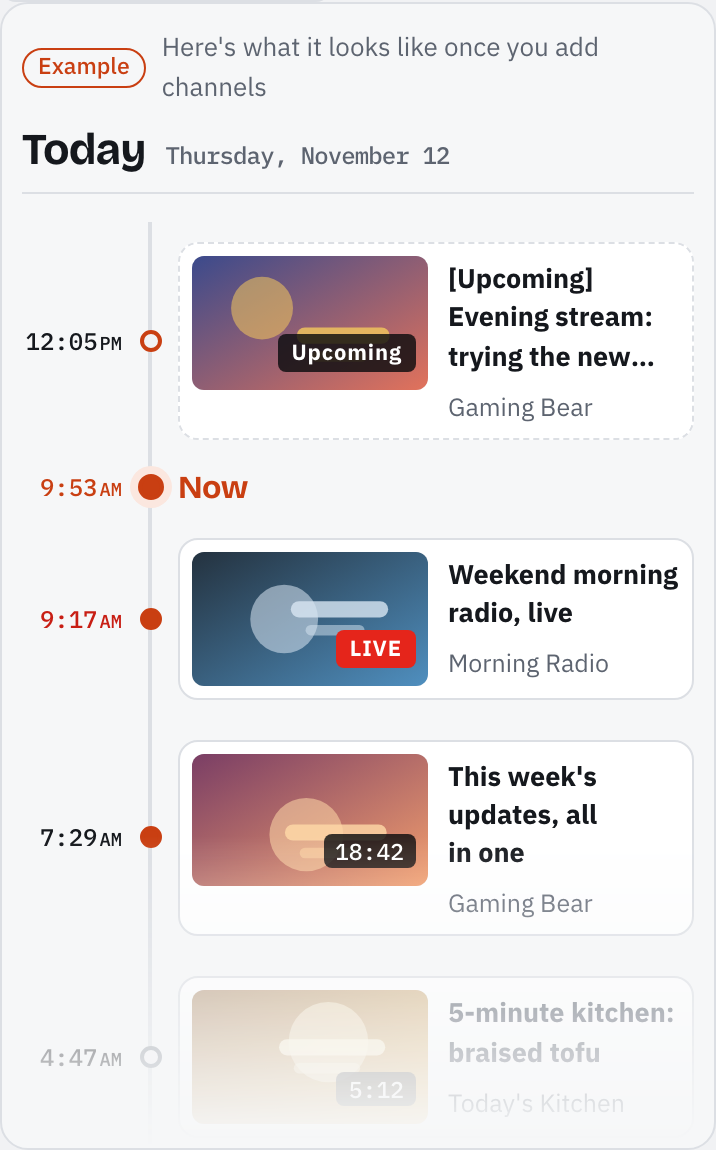
- Grouped by day. "Today", "Yesterday" and the date sit on top, and each video shows its upload time, like 12:05.
- Shorts are left out from the start. It drops videos posted as Shorts and videos 3 minutes or shorter, so short regular videos go too. Short live replays stay.
- Orange dots on unwatched videos. Watched videos get a hollow dot, so you can see where you left off.
- Live and upcoming streams sit at their start time.
You can use it right away without signing in, or sign in to see the same lists on your phone and computer.
Comparison
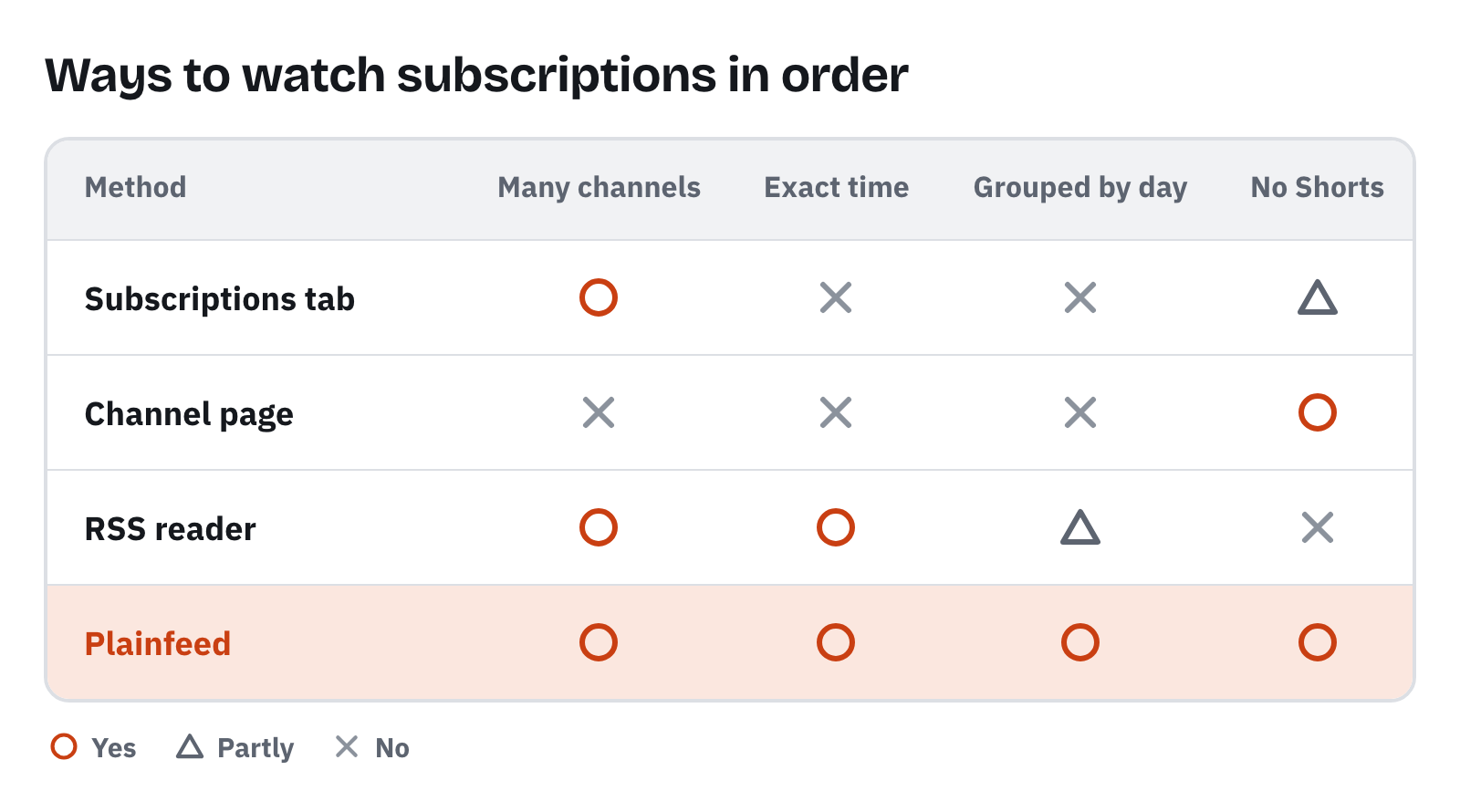
○ yes · △ partly · ✕ no. In the phone app, the Subscriptions tab's "Videos" filter drops Shorts. How an RSS reader groups by day depends on the reader.
Wrapping up
The Subscriptions tab is already newest first, which is enough for a quick skim. If you want to see at a glance what went up yesterday and when, and how far you've watched, a view with dates and times is easier. For a handful of channels, an RSS reader is a good choice too.