How to split your YouTube subscriptions into study and hobby groups
I picked every channel I subscribe to because I like it. Even so, there were times I wanted to watch them in separate groups.
I'd be watching a coding video, drift to a gaming video, and then end up in Shorts. So I looked for ways to watch subscriptions by topic.
I checked this on November 13, 2026, on YouTube's website in Chrome on desktop, signed in. YouTube changes its screens often, so if a menu name differs, look for something close.
1. The Subscriptions tab has no way to group channels
In short: the Subscriptions tab shows every channel in one line, and you can only pick channels one at a time.
- Subscriptions tab: new videos from all your channels, newest first. There's no menu to pick a topic.
- All subscriptions: the button at the top right of the tab opens your channel list. You can change the sort order and set notifications per channel.
- One channel only: click a channel name in the left menu to go to its channel page.
In 2021 YouTube tested "Collections", a way to sort subscribed channels into categories, with some users (Tubefilter). On the day I checked, the desktop Subscriptions tab and the "All subscriptions" screen had no such menu.
"Custom Feeds", announced in 2026, builds a tab on Home from a description of what you want to watch (9to5Google). It's coming to the US first, and it isn't the same as picking and grouping your own subscribed channels.
2. Split with playlists
In short: a playlist holds videos. It doesn't hold a whole channel.
- Press Save under a video.
- Create or pick a playlist such as "Study" or "Gaming".
- Watch what you saved from Playlists in the left menu.
It's good for collecting videos to watch later by topic. You have to add each new video yourself, so you still keep checking the Subscriptions tab.
3. Create a second channel and split subscriptions
In short: one Google account can have several YouTube channels, and each channel has its own subscriptions.
- Click your profile picture at the top right → Settings.
- On the Account screen, use Create a channel to make a new one.
- Use your profile picture → Switch account to change to the new channel, then subscribe only to study channels there.
Subscriptions, algorithmic recommendations and watch history all build up separately per channel, so this is the cleanest split. You have to switch channels every time, and subscribe again from scratch.
That's as far as YouTube itself goes. You either can't group channels, have to add videos by hand, or have to switch accounts every time. To group channels once and see their new videos with one press of a tab, you need a tool outside YouTube.
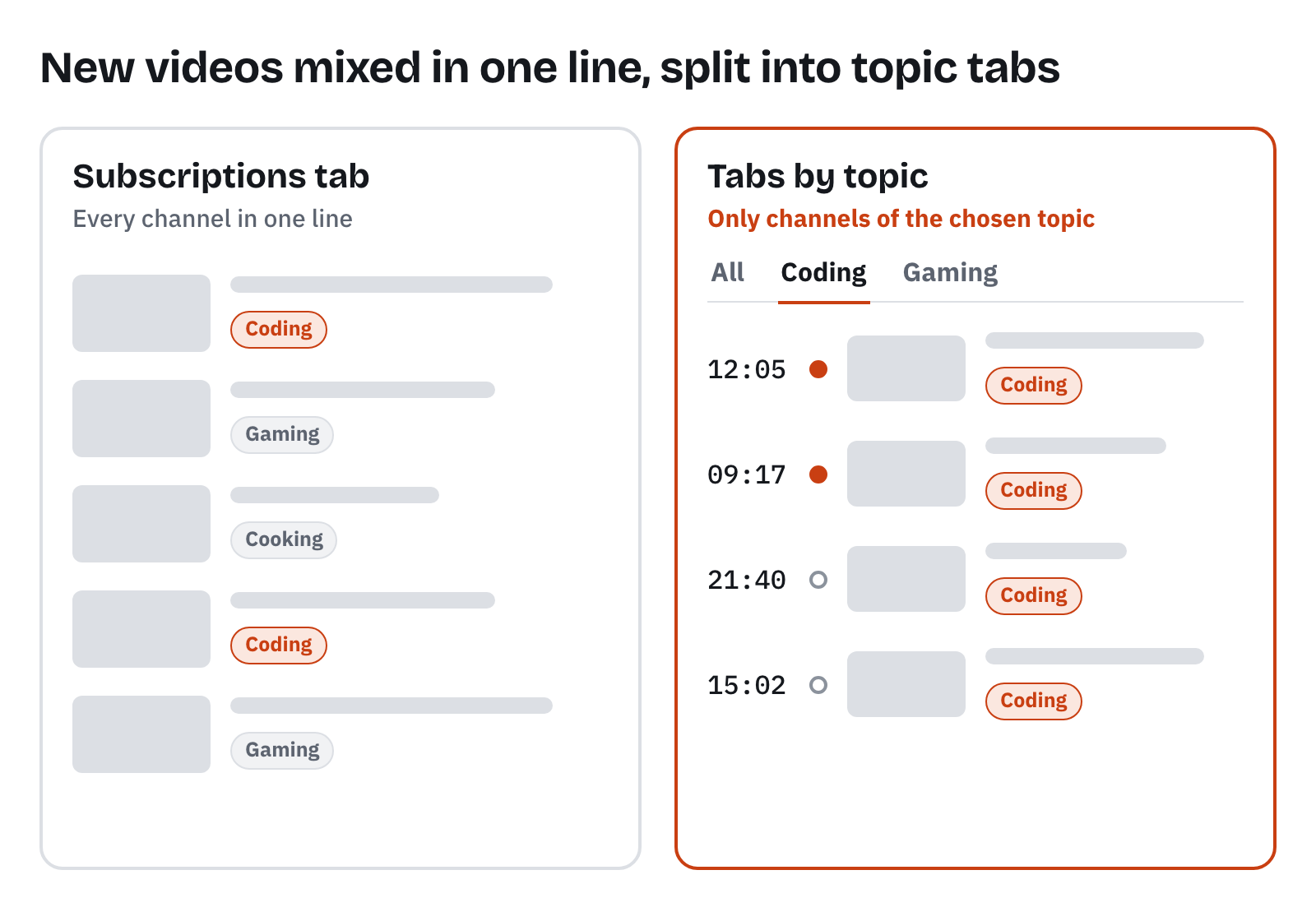
To group channels and get only new videos: Plainfeed feeds
In short: check channels to group them into a feed, and each feed gets a tab that shows only those channels' new videos, by day.
Plainfeed is a separate website, not an official YouTube service. I currently use two feeds, "Coding" and "Gaming".
- Add channels. You can import your YouTube subscriptions with your Google account.
- Press + Feed in the tab row, name it, and check the channels to include.
- Press the feed's tab to see only those channels' new videos, in upload order.
- Switch with one tab. All, Coding and Gaming sit in one row, and a press switches right away.
- One channel can go in several feeds. You can make up to 3 feeds.
- Keep watching inside a feed. The Play button shows how many videos in that feed you haven't watched, and plays only that feed's videos in turn.
- Only new videos from the channels you picked. Shorts are left out, and when you sign in you see the same feeds on phone and desktop.
- You can send a feed as a link. See Send a channel list to family and friends.
What I like most is that I now watch only new videos from the channels I want, with no algorithm-recommended videos.
Comparison
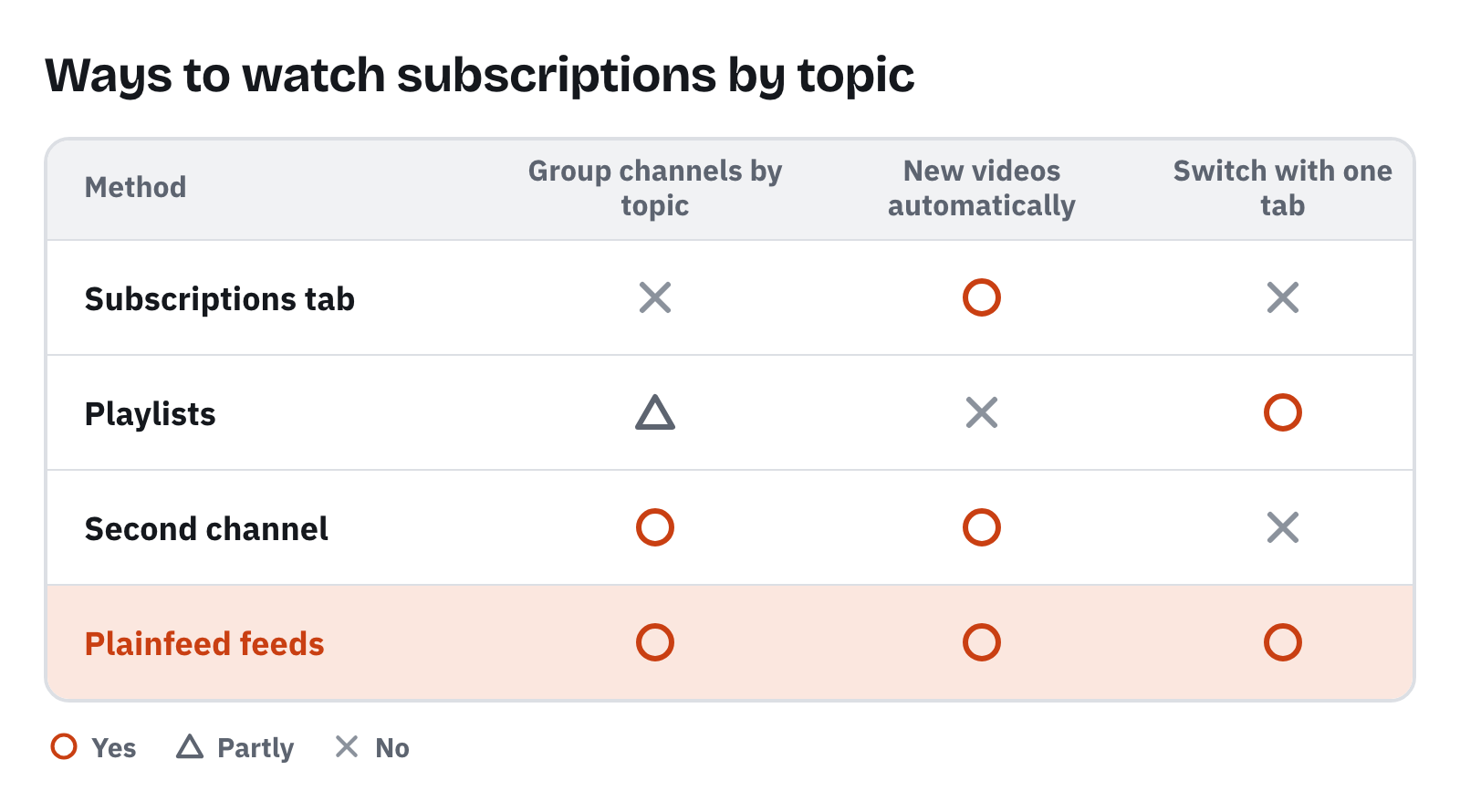
○ yes · △ partly · ✕ no. A playlist groups videos, not channels. With a second channel, you switch by changing accounts.
Wrapping up
If you have one or two topics and want to hand-pick videos, playlists are enough. If you want algorithmic recommendations and history fully separate, a second channel is the surest way. If you want to group channels once and just get their new videos, Plainfeed feeds are the easy route. If you use an RSS reader, folders work too. The RSS address is in How to watch your YouTube subscriptions in upload order.